Table of Contents
Introduction
This document describes the configurations required for SAML 2.0 integration between the Octopus Authenticator and the Dropbox web service. The integration process involves the following stages:
- Creating the Dropbox SAML Service in the Octopus Management Console
- Setting Up SSO for Dropbox
Creating the Dropbox SAML Service
The following procedure explains how to create a SAML service for Dropbox in the Octopus Management Console. The service settings will be used later when you configure the SSO setup in your Dropbox admin account.
1. From the Octopus Management Console, open the Services menu and click Add Service. In the Dropbox tile, click Add.
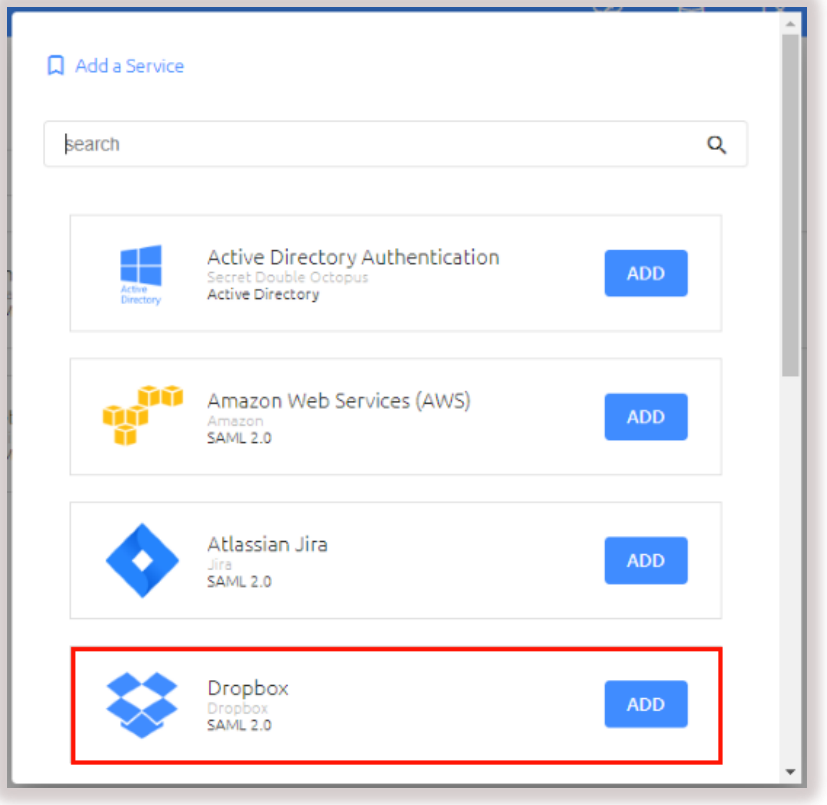
2. In the dialog that opens, click Create
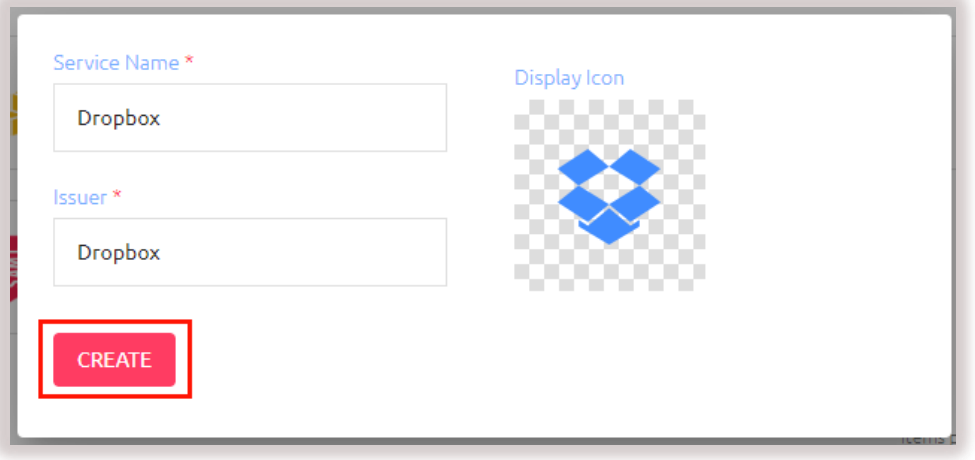
3. Review and configure the following settings in the General Info Tab:
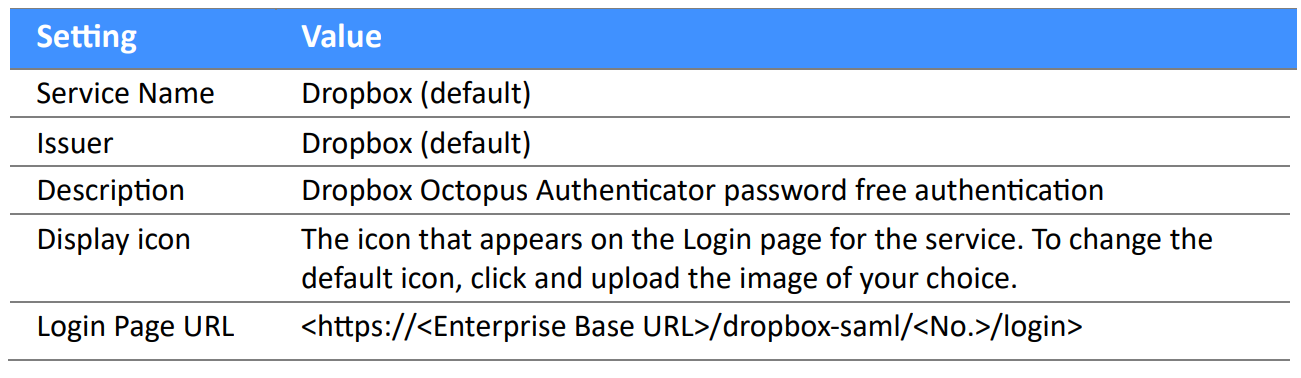
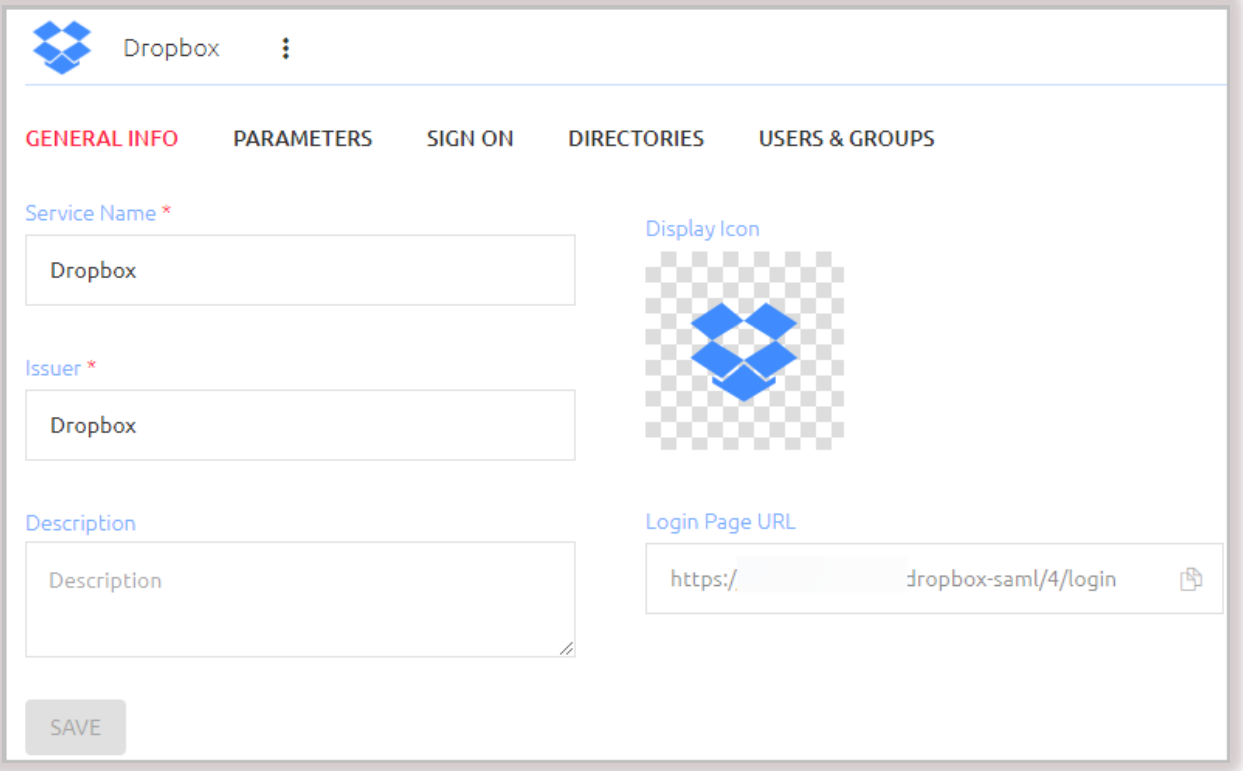
4. At the bottom of the tab, click Save
5. Open the Parameters tab and configure the following settings. Do not configure any additional parameters.

6. At the bottom of the page click Save.
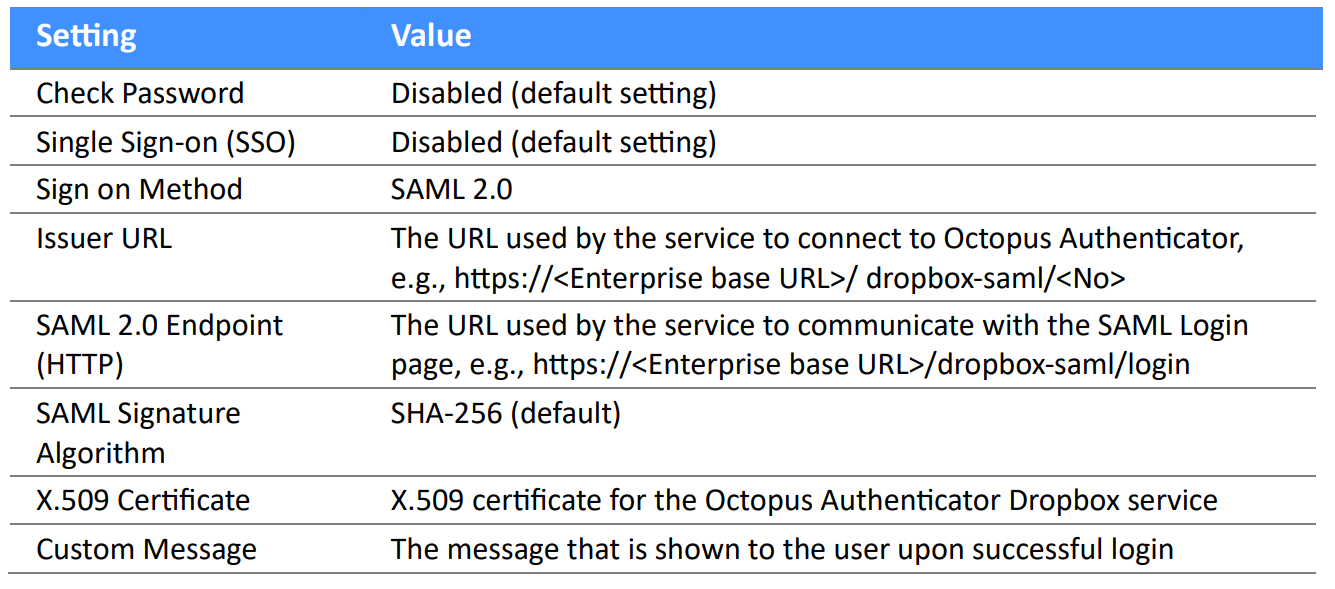
7. Open the Sign On tab and configure the following settings. It is recommended not to change default settings.
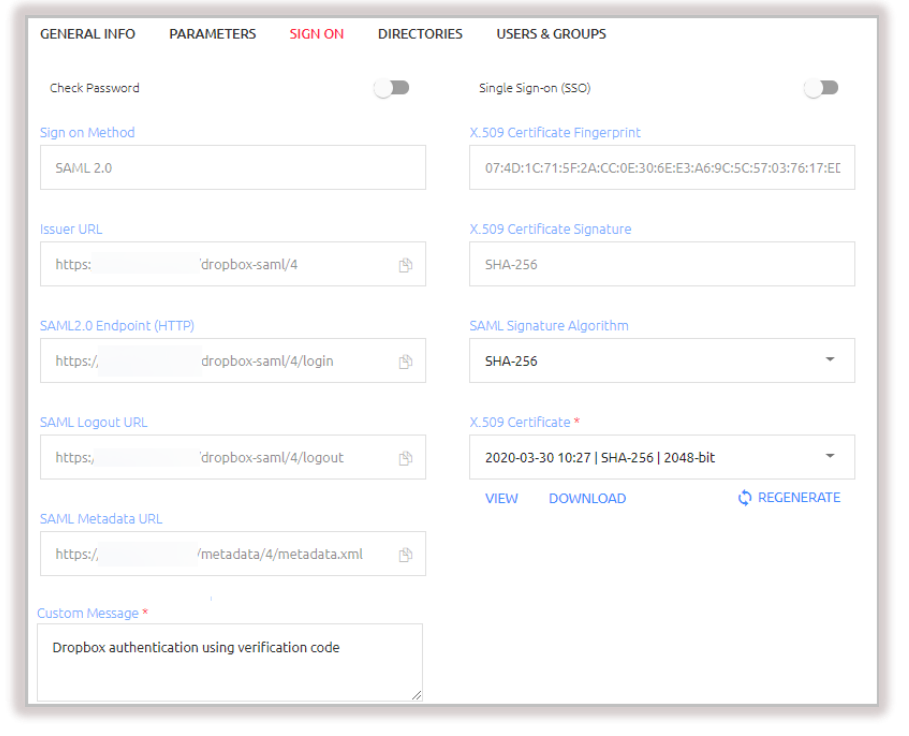
8. At the bottom of the Sign On tab, click Save.
9. Open the Directories tab, and select the checkbox of the directory to be integrated with the service.
10. Open the Users & Groups tab and click Add.
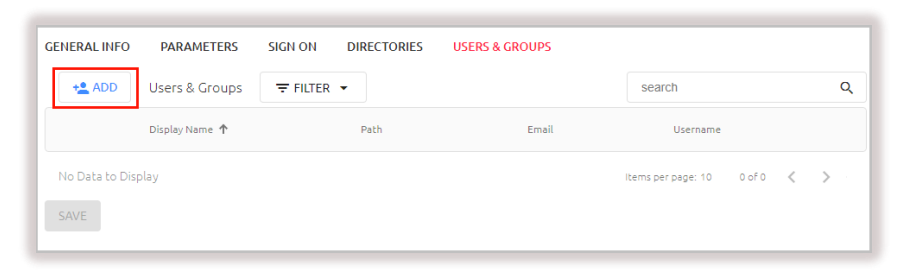
A popup opens, with a list of directories displayed on the left.
11. Expand the relevant directory and select the checkboxes of the groups and users that you want to add to the service. Then, click Done to close the popup.
12. Click Save and publish your changes.
Setting Up SSO for Dropbox
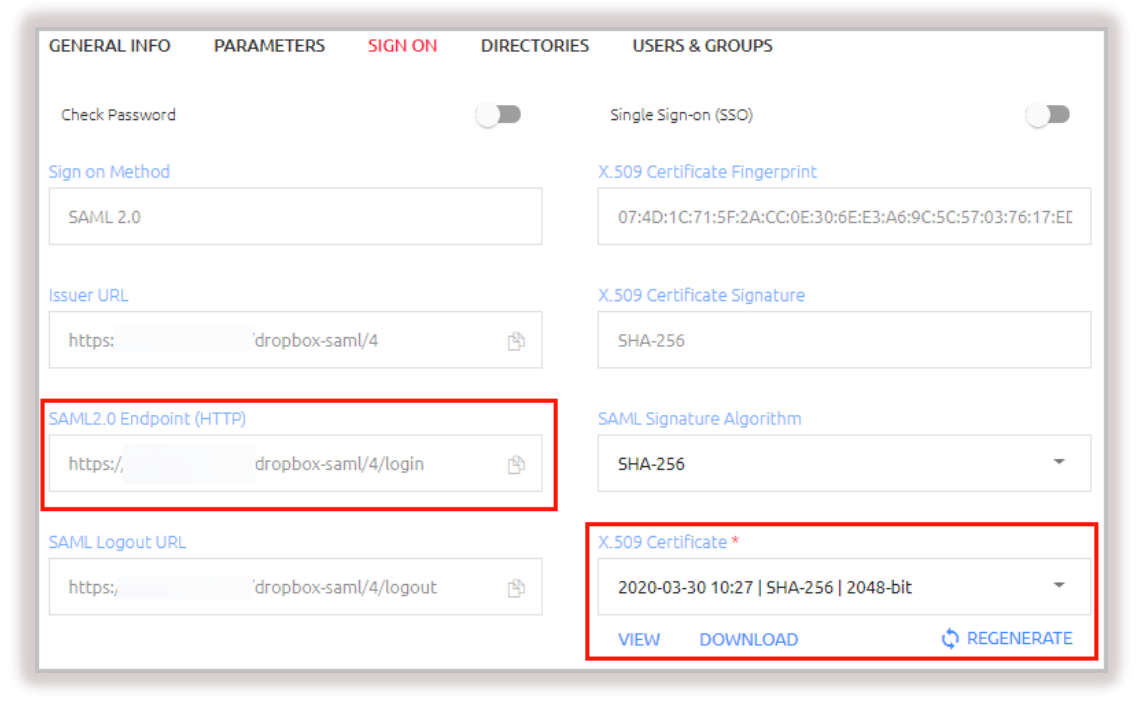
The procedure below explains how to configure the 3rd party identity provider SSO in your Dropbox admin account to support integration with Octopus Authenticator. Before you begin, make sure that you have access to the following elements. They can be copied or downloaded from the Sign On tab of the Dropbox SAML service that you created in the Octopus Management Console.
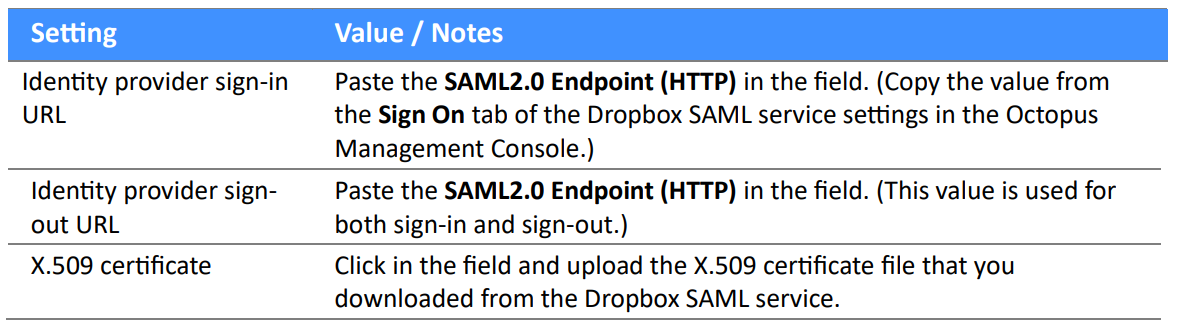
- SAML2.0 Endpoint (HTTP): The Octopus Authenticator Login page URL to which the Dropbox service provider will refer users for Octopus authentication. Click the Copy icon to copy the URL.
- X.509 Certificate: Click Download to download the cert.pem file. You will use the file while configuring the Dropbox 3 rd party IdP SSO.
To set up SSO for Dropbox
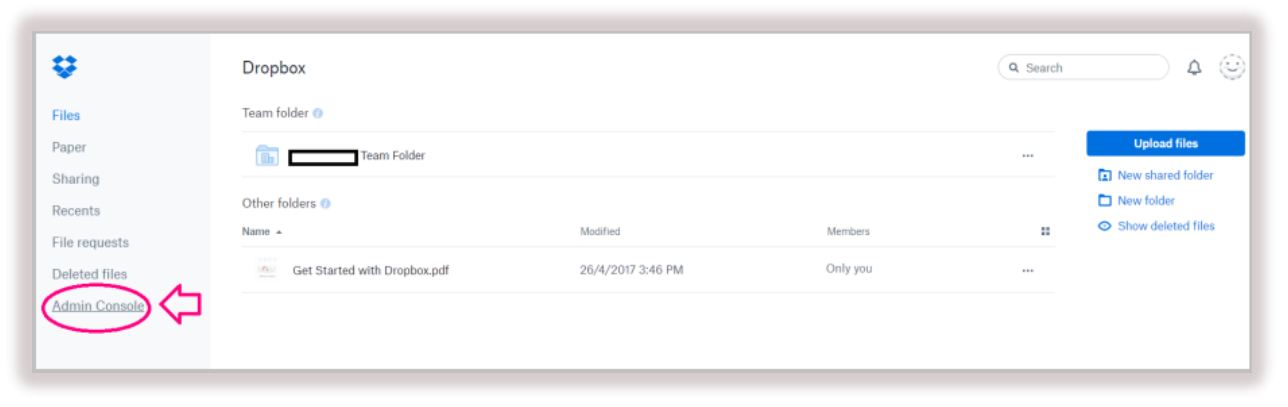
1. Log into your Dropbox admin account and navigate to Admin Console.
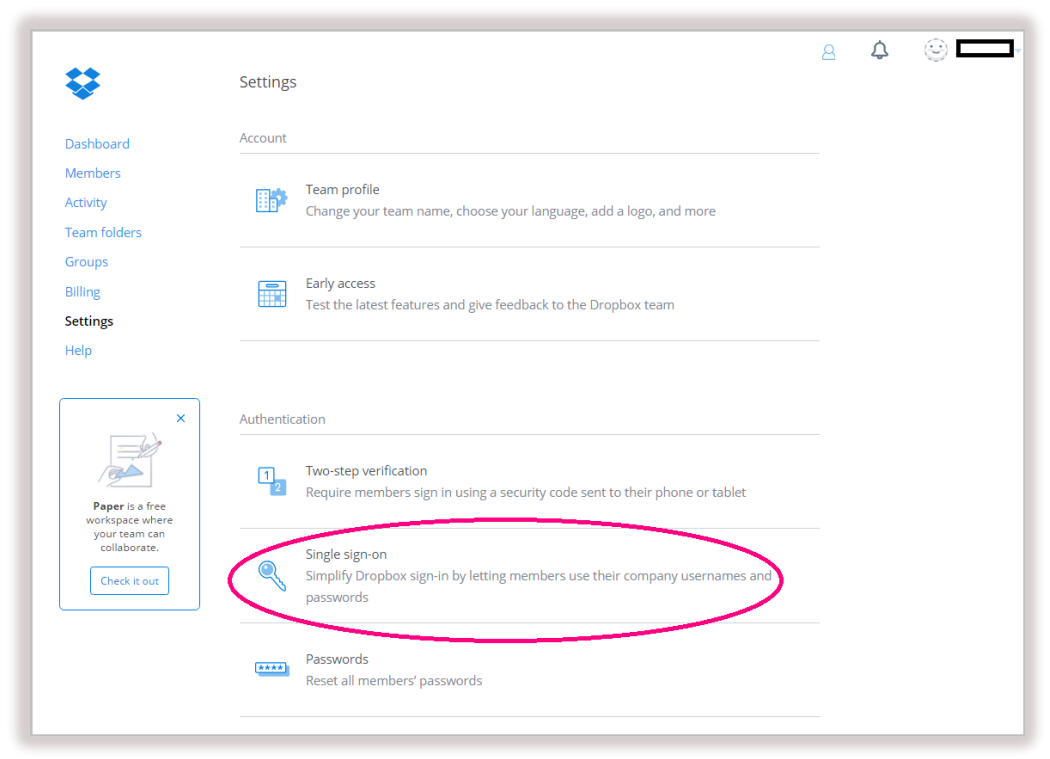
2. From the Admin Console Dashboard, select Settings. Then, on the Settings page, under Authentication, select Single sign-on.
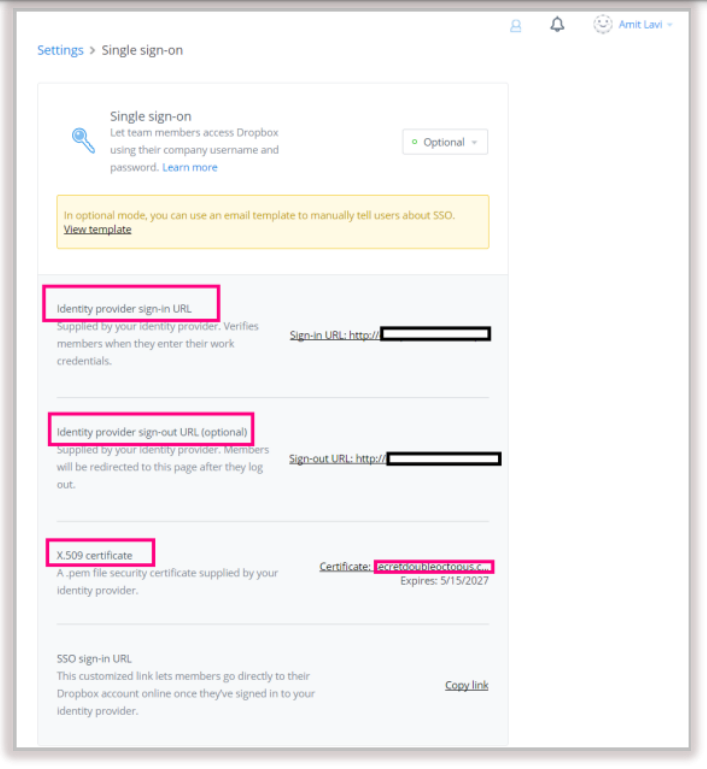
3. On the Single sign-on page, configure the following settings:
4. You are no ready to test Octopus Authentication for Dropbox