Support Specialist • User Management
How to Re-Enroll a User
Re-enrolling a user is required when the Octopus Authenticator must be reset (new phone, app reinstallation, enrollment issues, or lost device). This process sends a timed limit enrollment invitation to the user.
Before you start
Prerequisites
- Admin or Helpdesk permissions.
- Access to the SDO Management Console.
Important notes
- The user will receive a new enrollment email.
- Previous authenticator pairing becomes invalid.
Step 1 – Open the SDO Management Console
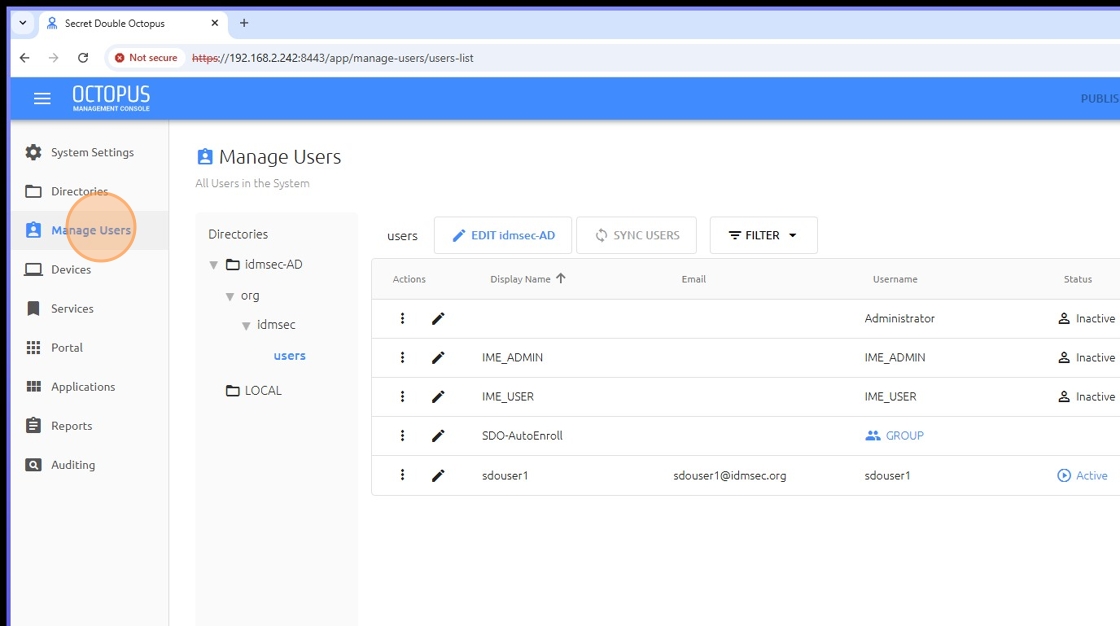
Step 2 – Click Manage Users
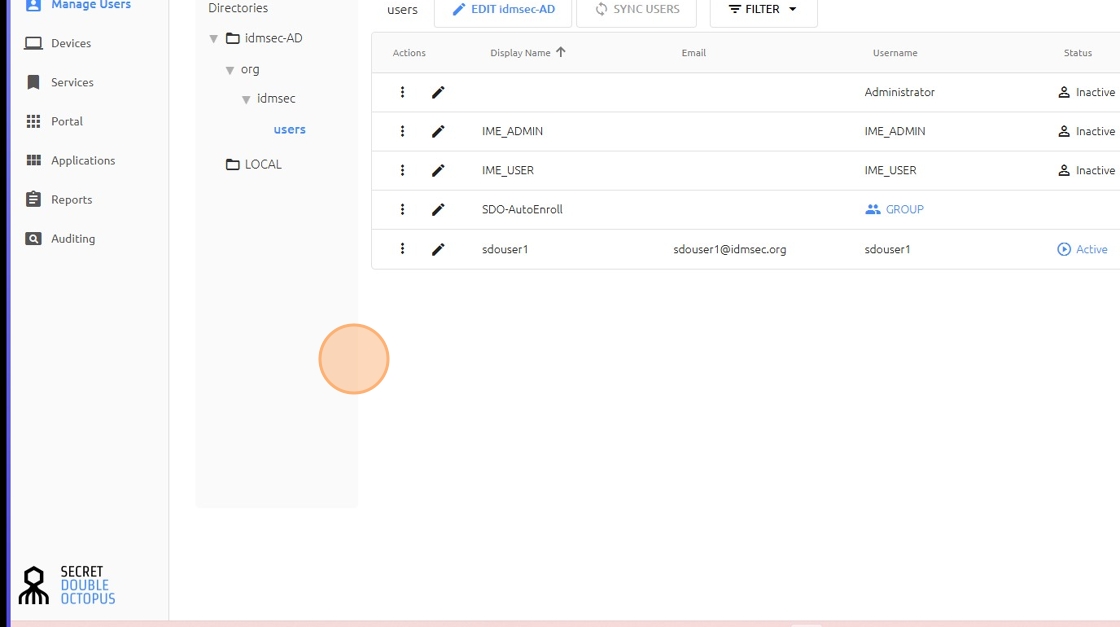
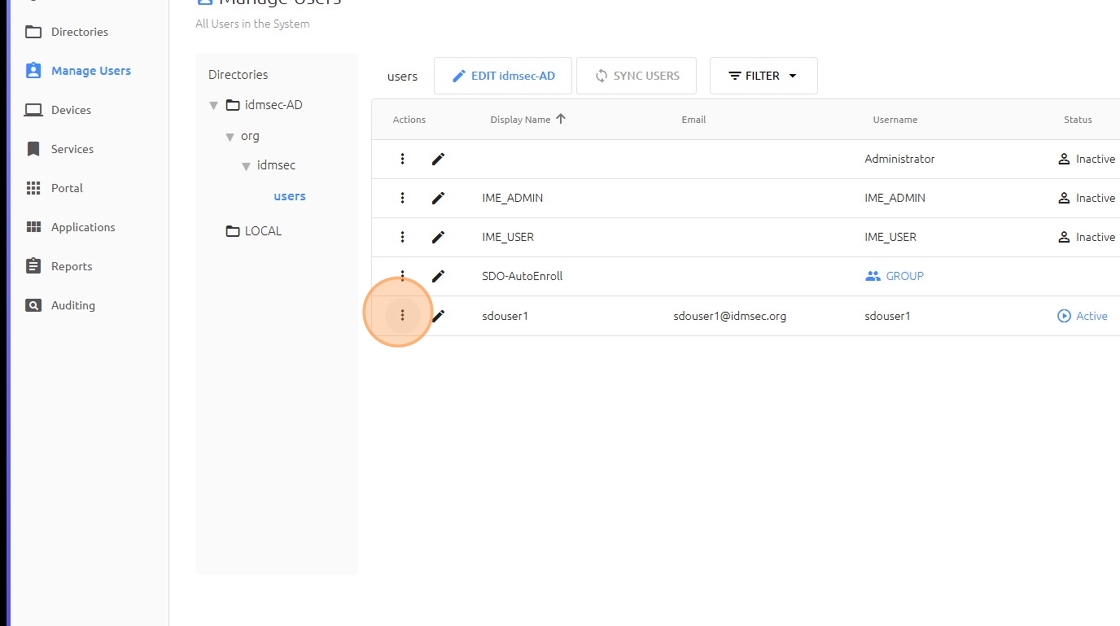
Step 3 – Click the three dots next to the user
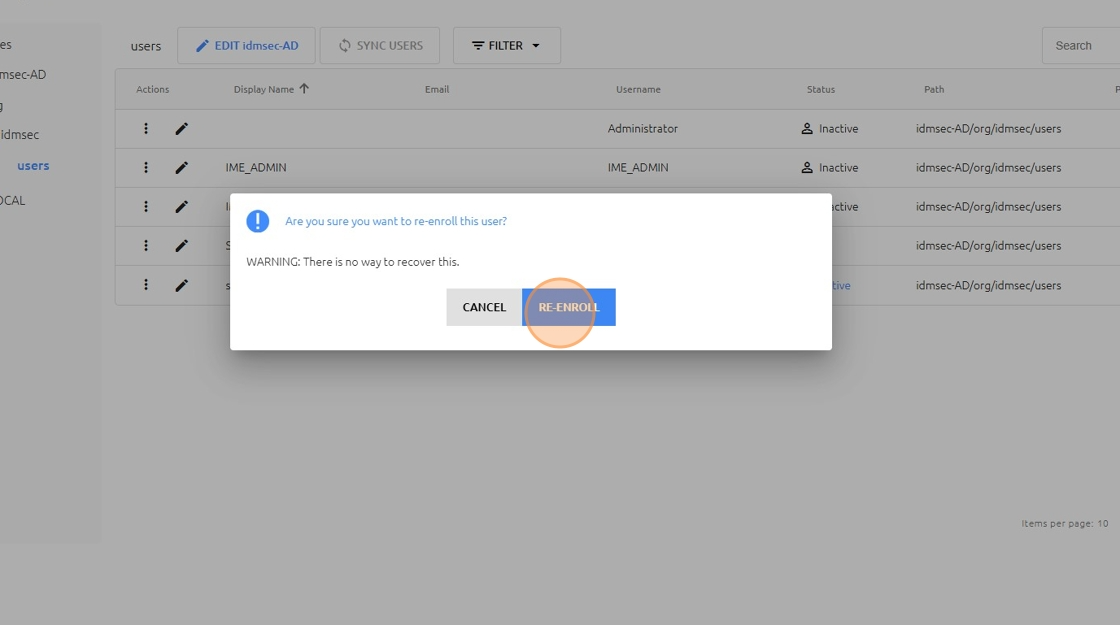
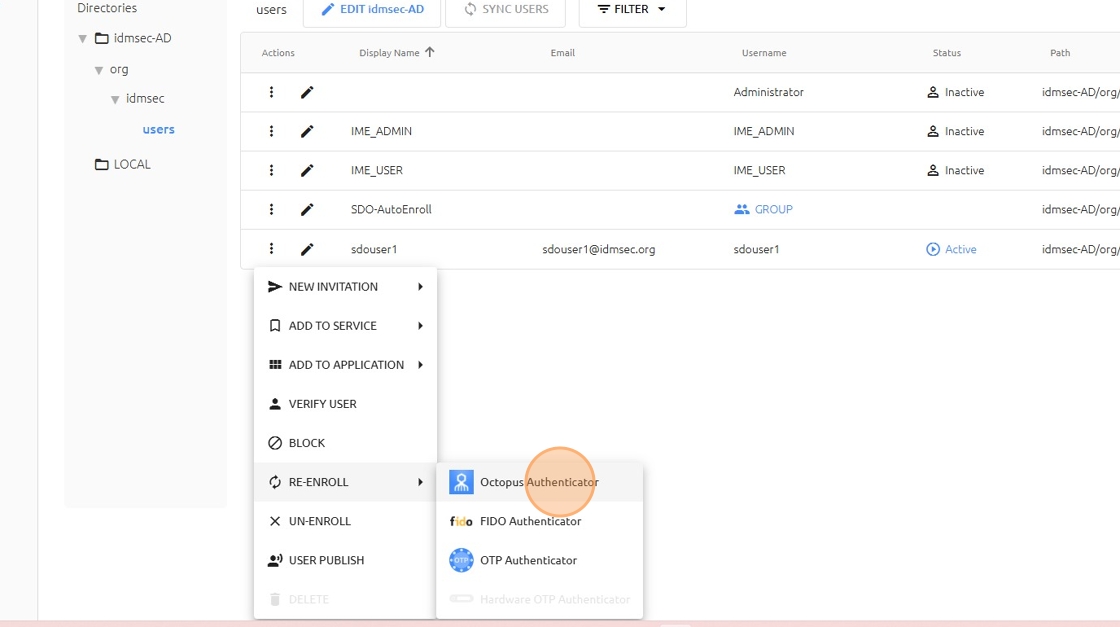
Step 4 – Select RE-ENROLL → Octopus Authenticator
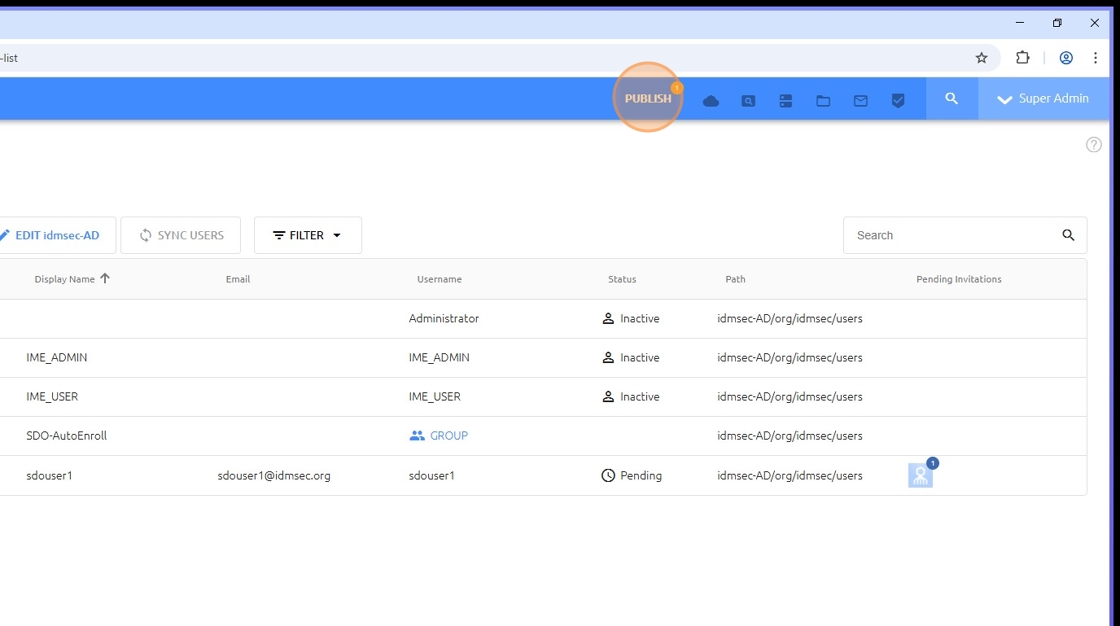
Step 5 – Click PUBLISH
An enrollment invitation email is sent to the user.