This document describes the configurations required for LDAP integration between the Octopus Authenticator and the LimeSurvey web service.
LimeSurvey integration is supported by configuring the Octopus Authentication Server as an LDAP Proxy. With the LDAP Proxy service, Secret Double Octopus can be configured as an identity provider for the LimeSurvey system using the LDAP protocol.
Before beginning the integration process, make sure you have administrative access to both the LimeSurvey system and the Secret Double Octopus Management Console.
In addition, verify that:
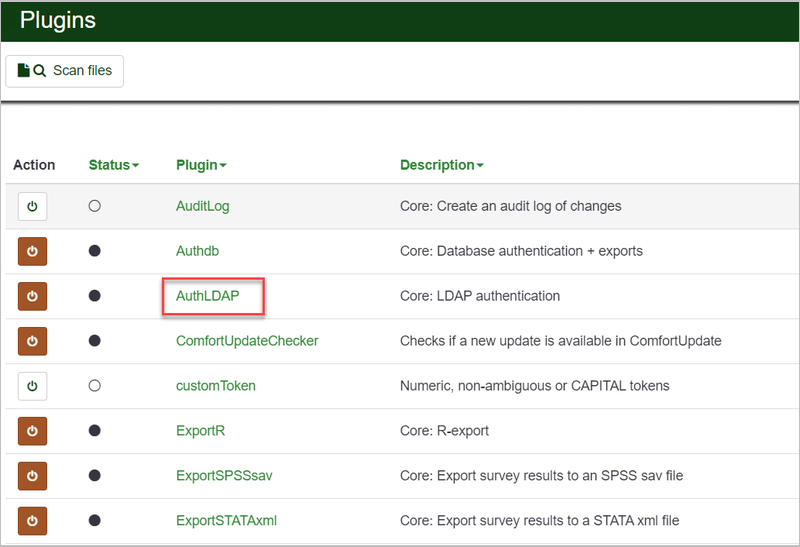
The AuthLDAP plugin is enabled in the LimeSurvey system.
A user repository is configured in Secret Double Octopus. (Microsoft Active Directory is the user repository for the integration described in this document.)
For more details and instructions about corporate directory integration, please refer to the Octopus Management Console Admin Guide.
LimeSurvey integration involves the following sequential phases:
Creating the Octopus Authentication LDAP Service in the Octopus Management Console
The following procedure explains how to add a service for LimeSurvey in the Octopus Management Console. Some of the service settings will be used later when configuring the IdP in the LimeSurvey console.
To add and configure the LimeSurvey LDAP service:
From the Octopus Management Console, open the Services menu and click Add Service. In the LDAP tile, click Add.
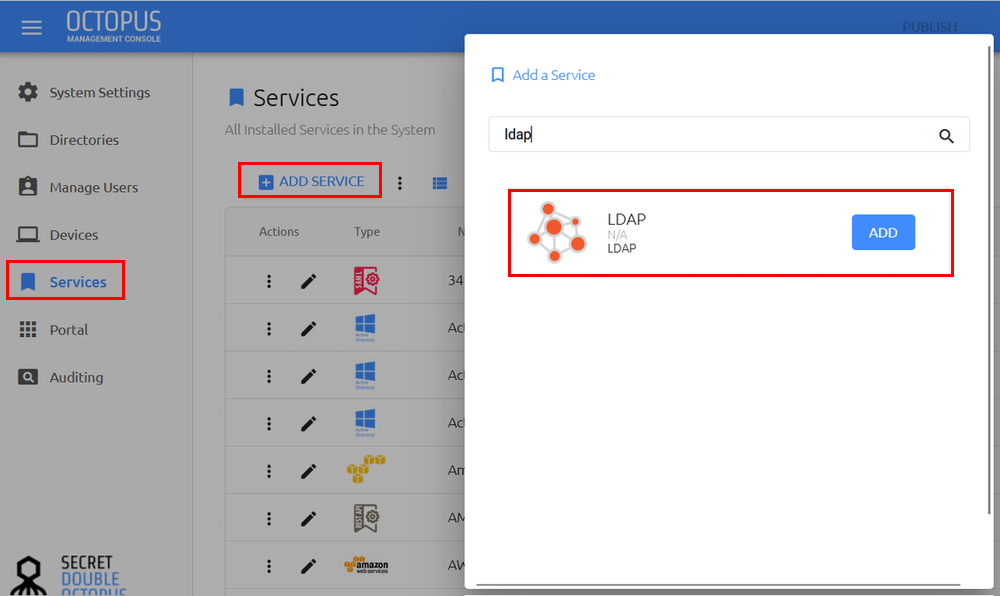
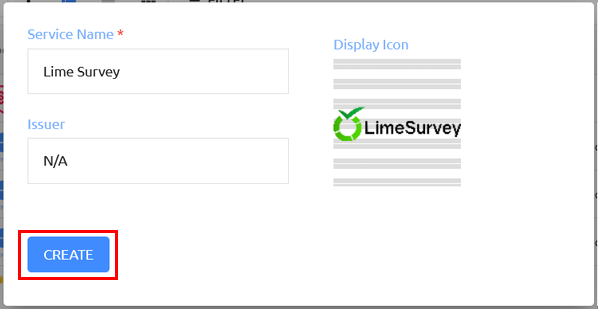
Then, in the dialog that opens, click Create.
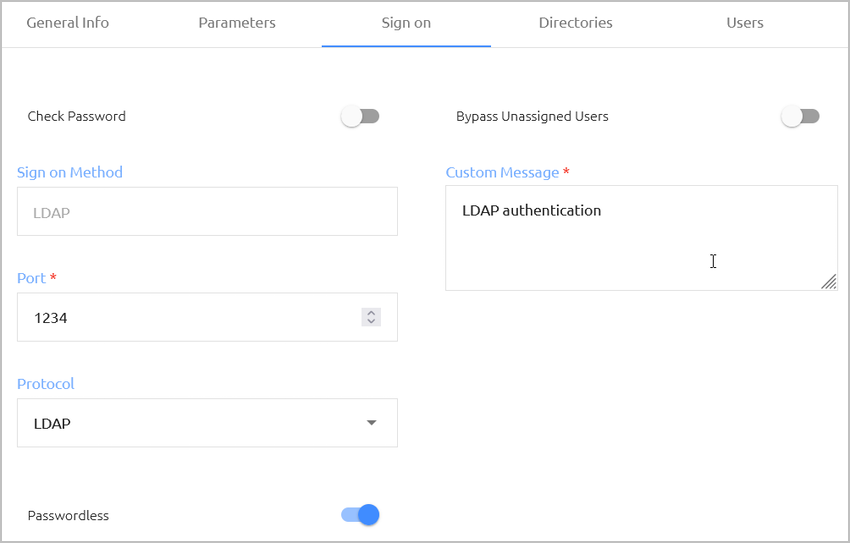
From the service settings, select the Sign on tab. Review / update the following settings:
Setting
Description / Notes
Port
Enter the port used for communication with the LDAP server. Make sure the port number matches the service provider’s LDAP port number.
Protocol
Select LDAP or LDAPS.
Passwordless
When enabled, the user’s password on the AD is rotated transparently, allowing passwordless authentication to all integrated services.
At the bottom of the Sign on tab, click Save.
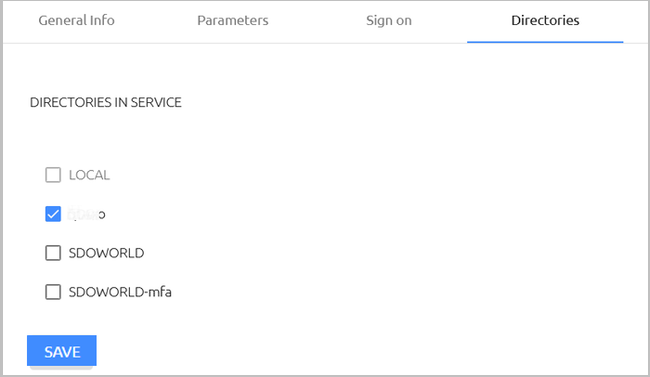
Open the Directories tab and select the checkbox(es) of the directory/directories to be integrated with the Service. Then, click Save.
Open the Users tab and click Add.
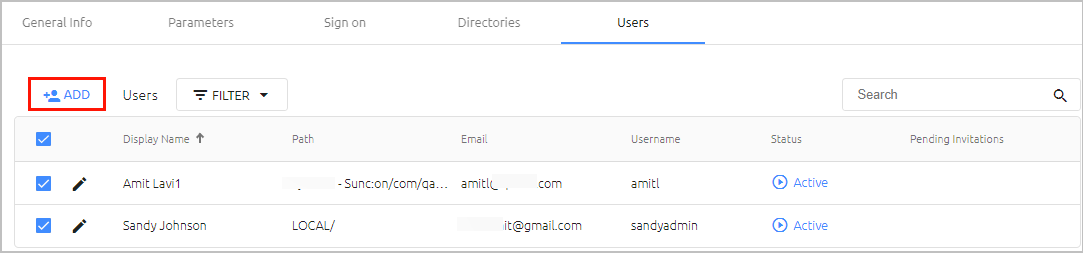
A popup opens, with a list of directories displayed on the left.
Expand the directories list and select the checkboxes of the groups and users that you want to add to the service. Then, click Save to close the popup.
The groups and users you selected are listed in the Users tab.
At the bottom of the Users tab, click Save. Then, from the toolbar at the top of the page, click PUBLISH and publish your changes.
Follow the steps below to configure Secret Double Octopus as an identity provider for LimeSurvey using the LDAP protocol.
To configure the IdP in LimeSurvey:
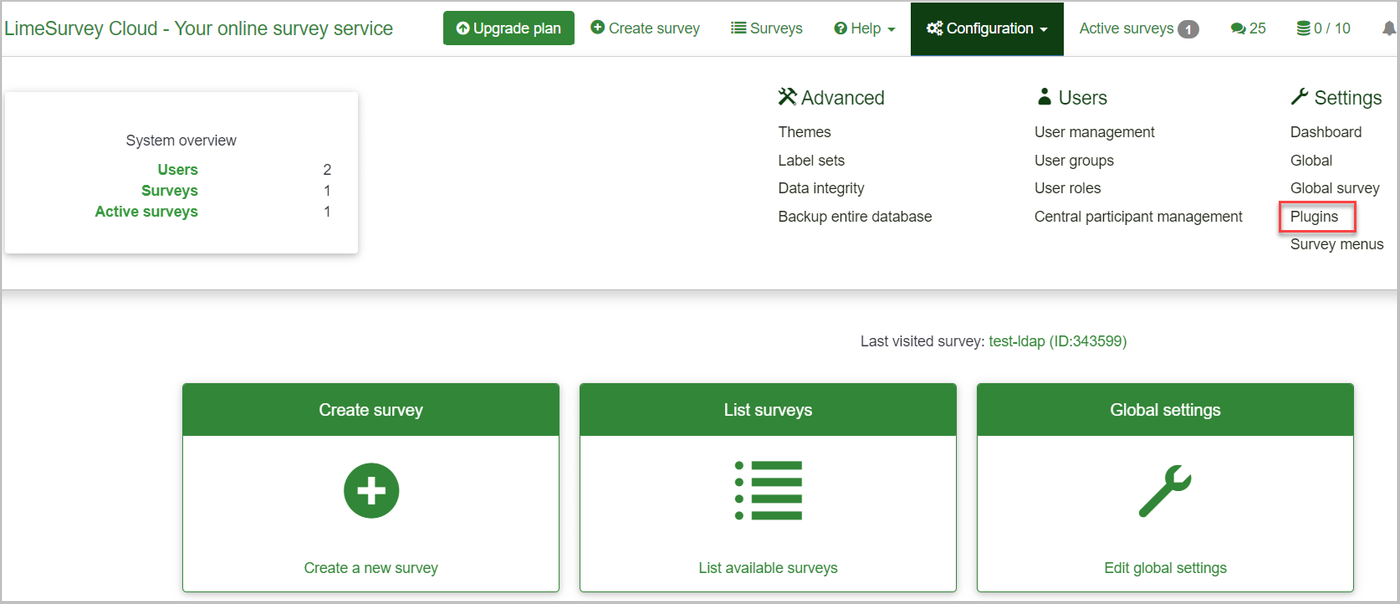
From the LimeSurvey console, select Configuration. Then, under Settings, select Plugins.
On the Plugins page, select the AuthLDAP plugin.
Then, open the Settings tab.
Configure the following settings:
Setting
Value / Notes
LDAP server
FQDN of the Octopus server Enterprise Base URL
Port number
Enter the port number configured in the Octopus LDAP service
LDAP version
LDAPv3
Select how to perform authentication
Search and bind
Attribute to compare to the given login
Select the relevant attribute
Base DN for the user search
Enter the BaseDN for the user AD search
Optional DN of the LDAP account
DN of the delegated AD account
Password of the LDAP account
Password for the delegated AD account
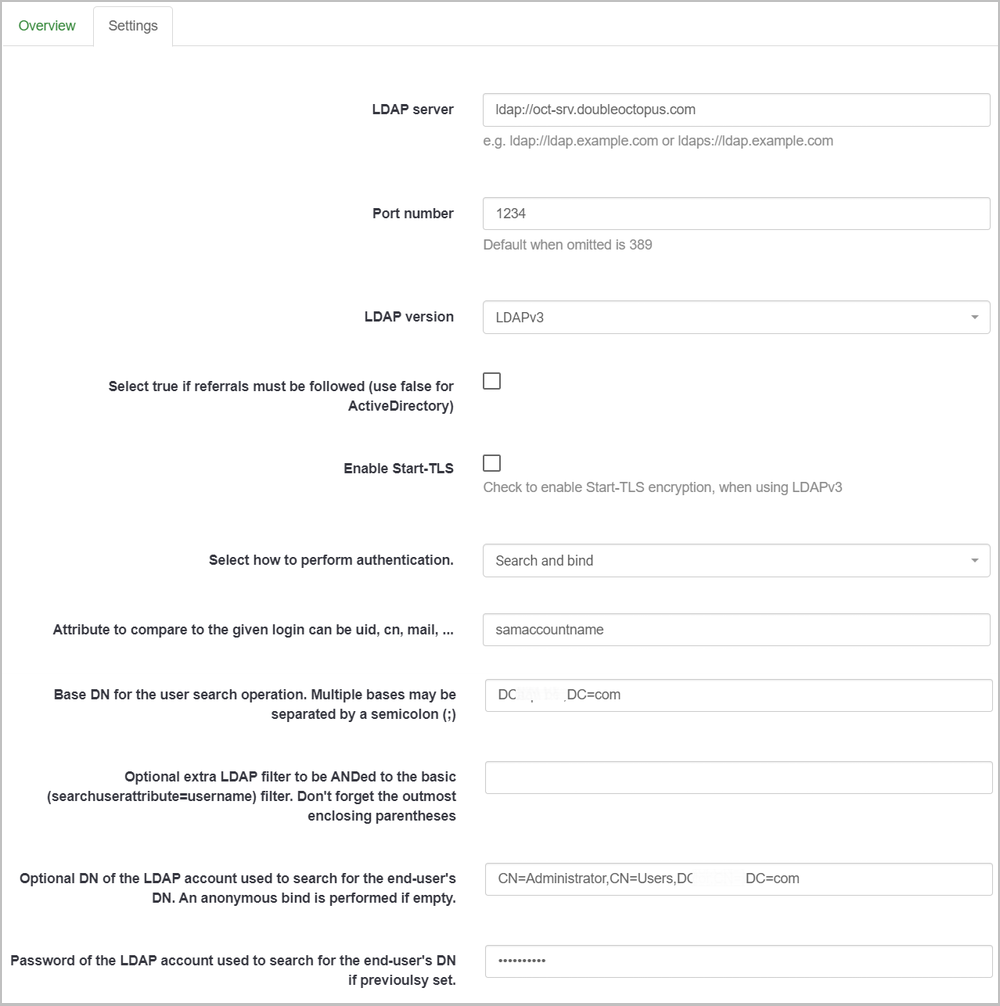
Click Save.
This section describes the user experience of logging into LimeSurvey via the Octopus Authenticator. The authentication process is as follows:
From the LimeSurvey login page, the user (Alice in this example) specifies the following parameters:
Authentication method: Alice selects LDAP
Username
Password: Alice enters any random character (to trigger the push)
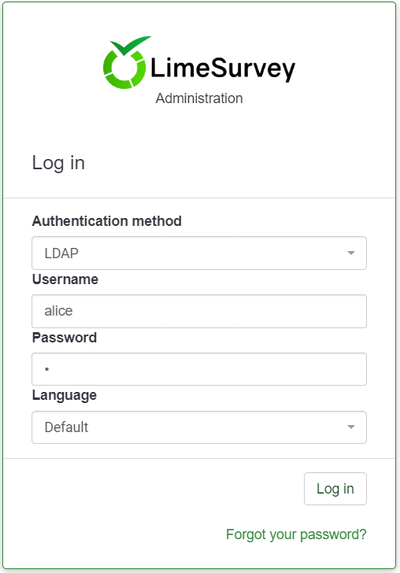
Alice clicks Log in.
A notification then appears on Alice’s Octopus Mobile App, asking for authentication approval.
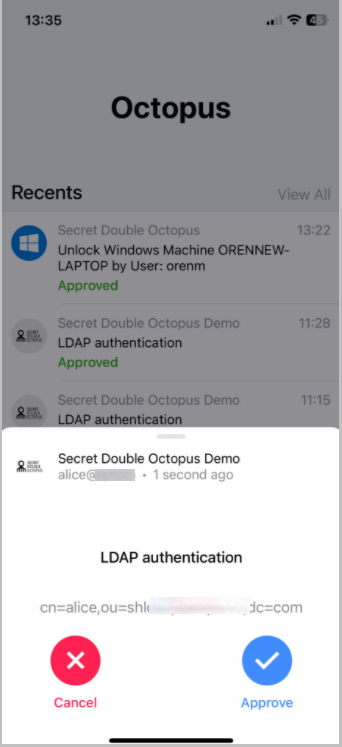
Alice approves the authentication request using biometrics.
After successful authentication, Alice is logged into LimeSurvey.