Windows Login Using One-Time Password (OTP)
Purpose
This guide explains how to securely log in to a Windows workstation using a One-Time Password (OTP) generated by Secret Double Octopus (SDO). OTP login adds an additional security layer by requiring a time-based code generated on your mobile device.
Prerequisites
- You are enrolled with Secret Double Octopus
- You have the Octopus Authenticator app (or another supported OTP app) on your smartphone
- Your Windows device is configured to allow OTP authentication
Login Flow Overview
- Select OTP on the Windows login screen
- Generate an OTP code on your mobile device
- Enter the OTP code to complete login
Select OTP on the Windows Login Screen
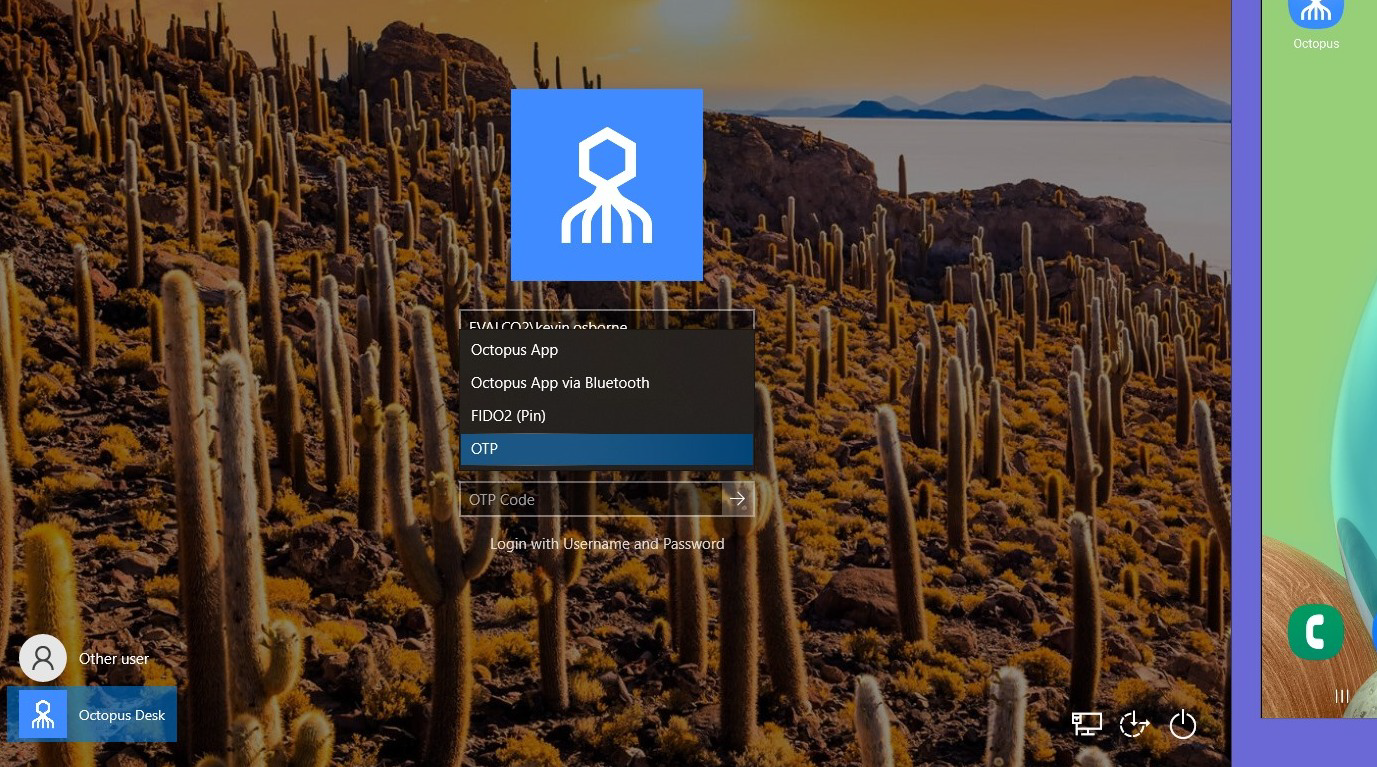
At the Windows login screen, open the SDO authentication dropdown and select OTP.
OTP Input Box Appears
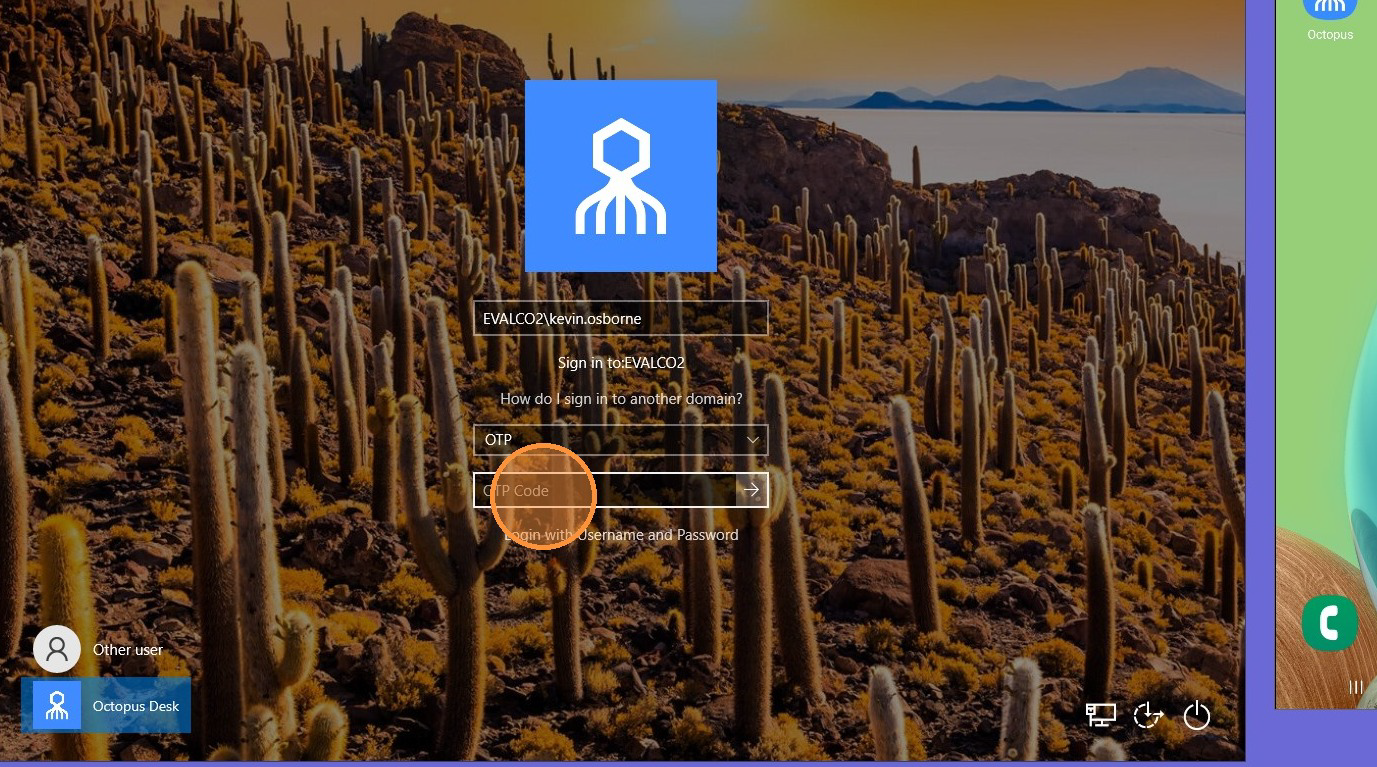
An OTP input box will appear. Open the Octopus Authenticator app (or another supported OTP app) on your smartphone.
Reveal the OTP Code
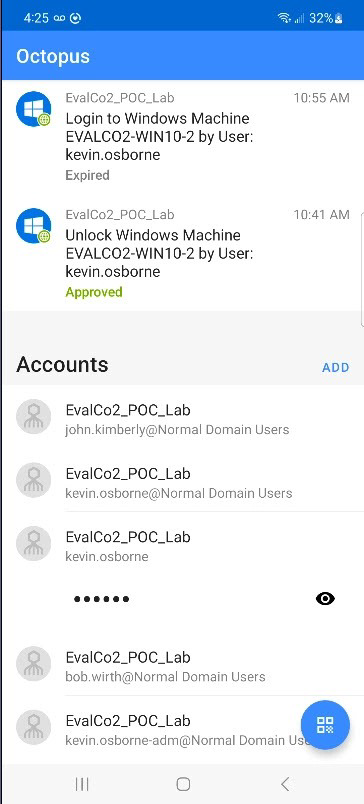
In the Octopus Authenticator app, tap the eye icon next to the OTP code to reveal it.
Verify Your Identity
Verify your identity using fingerprint or facial recognition (depending on your device configuration).

Enter the OTP Code
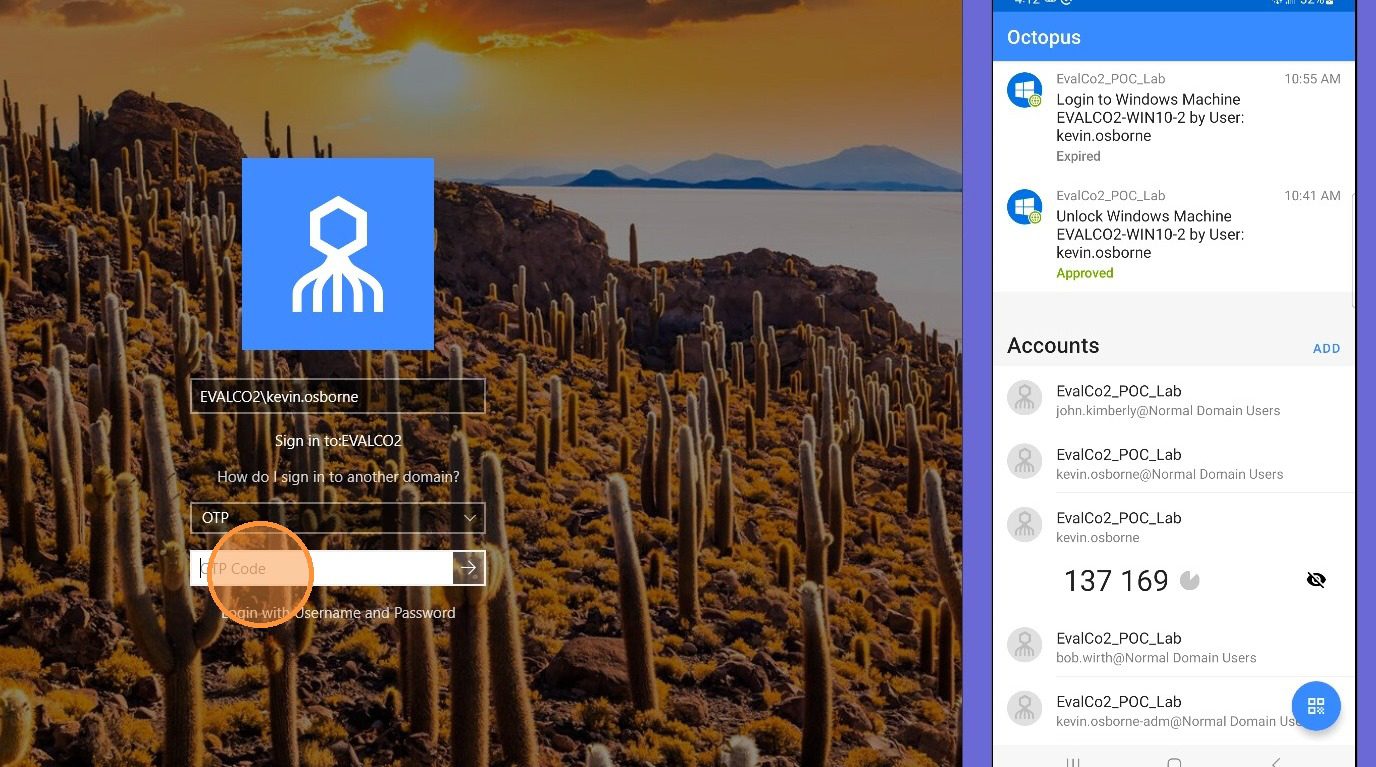
Enter the displayed OTP code into the OTP input box on the Windows login screen.
Login Confirmation
Windows will authenticate you and complete the login process. You are now successfully logged in.
Notes & Tips
- OTP codes are time-based and expire quickly. If the code expires, generate a new one.
- Make sure your phone time is synchronized automatically.
- If you experience repeated failures, contact your organization’s IT/Helpdesk team.
Need Help?
If you are unable to log in using OTP, verify you selected OTP as the login method and that your Authenticator app is working. If the issue continues, contact your IT or Helpdesk team.