Retrieve Password from Windows Systray using Octopus Authenticator
Retrieve a user credential securely via the Secret Double Octopus systray menu with mobile verification
Note: Clipboard storage duration and whether credentials can be displayed in the app are controlled by your organization’s SDO policies.
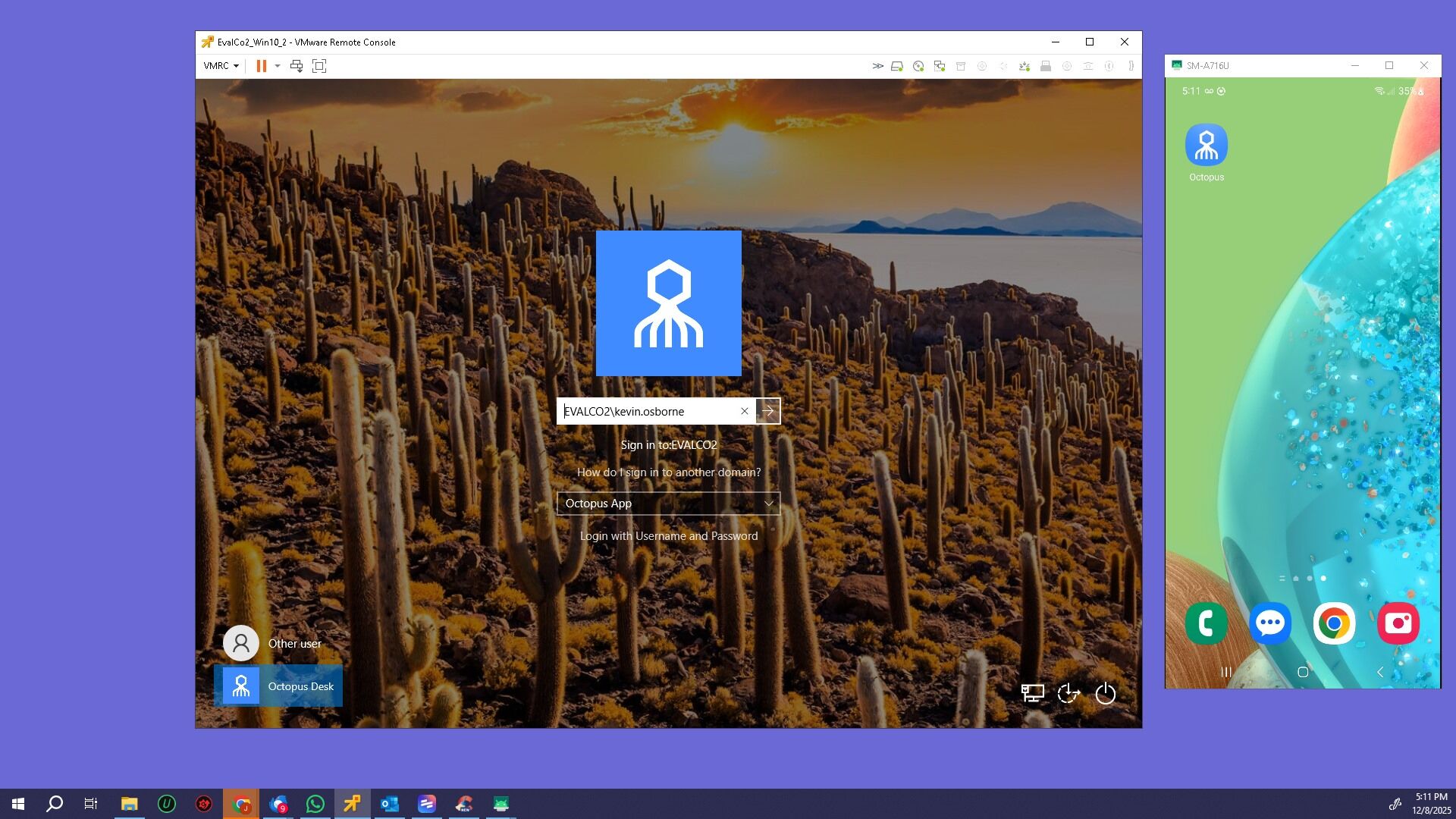
Step 1 – Log in to Windows
Log into the Windows system using any valid method.
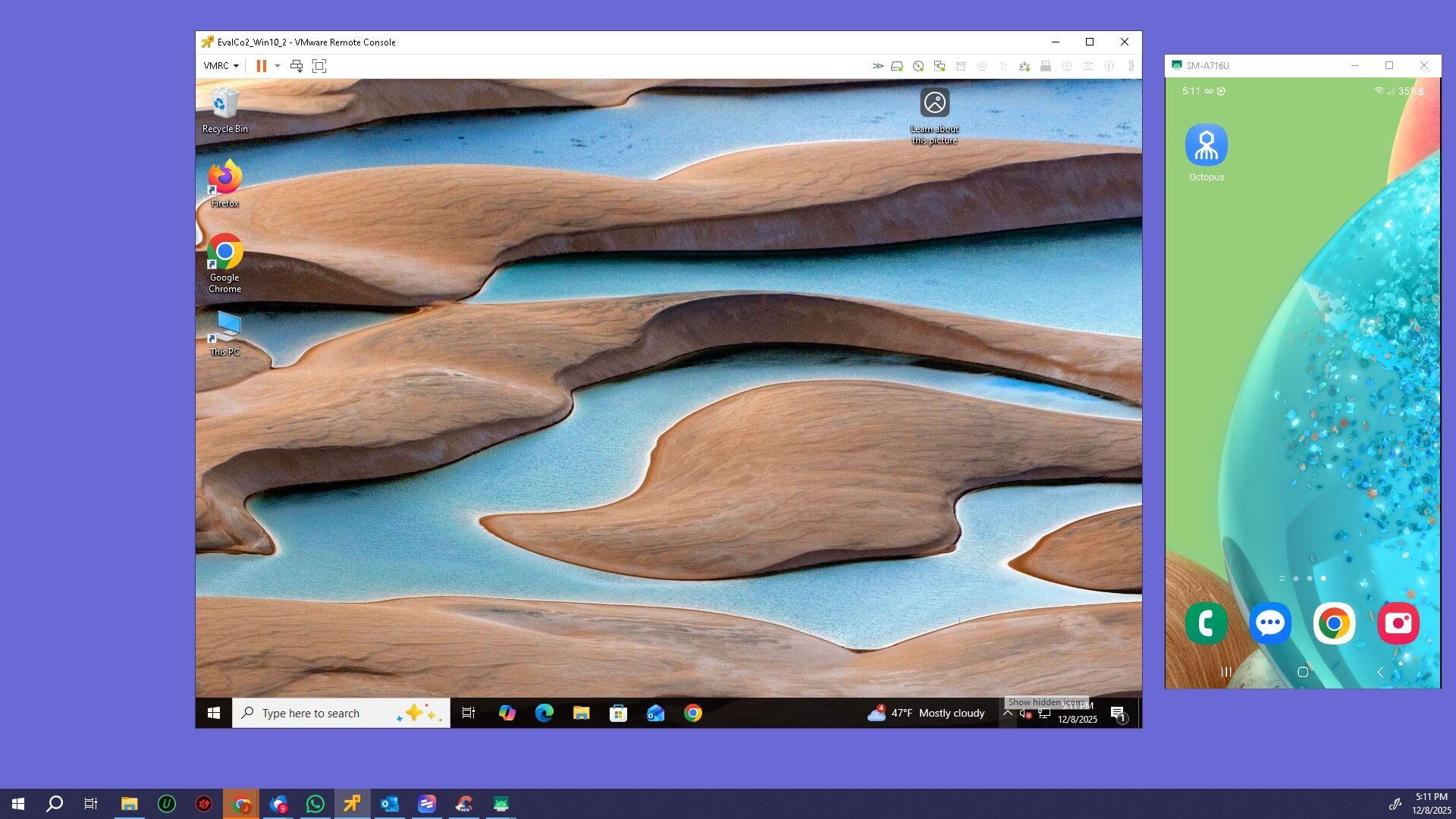
Step 2 – Open Hidden Systray Icons
Click the upward-facing chevron to open minimized tasks.
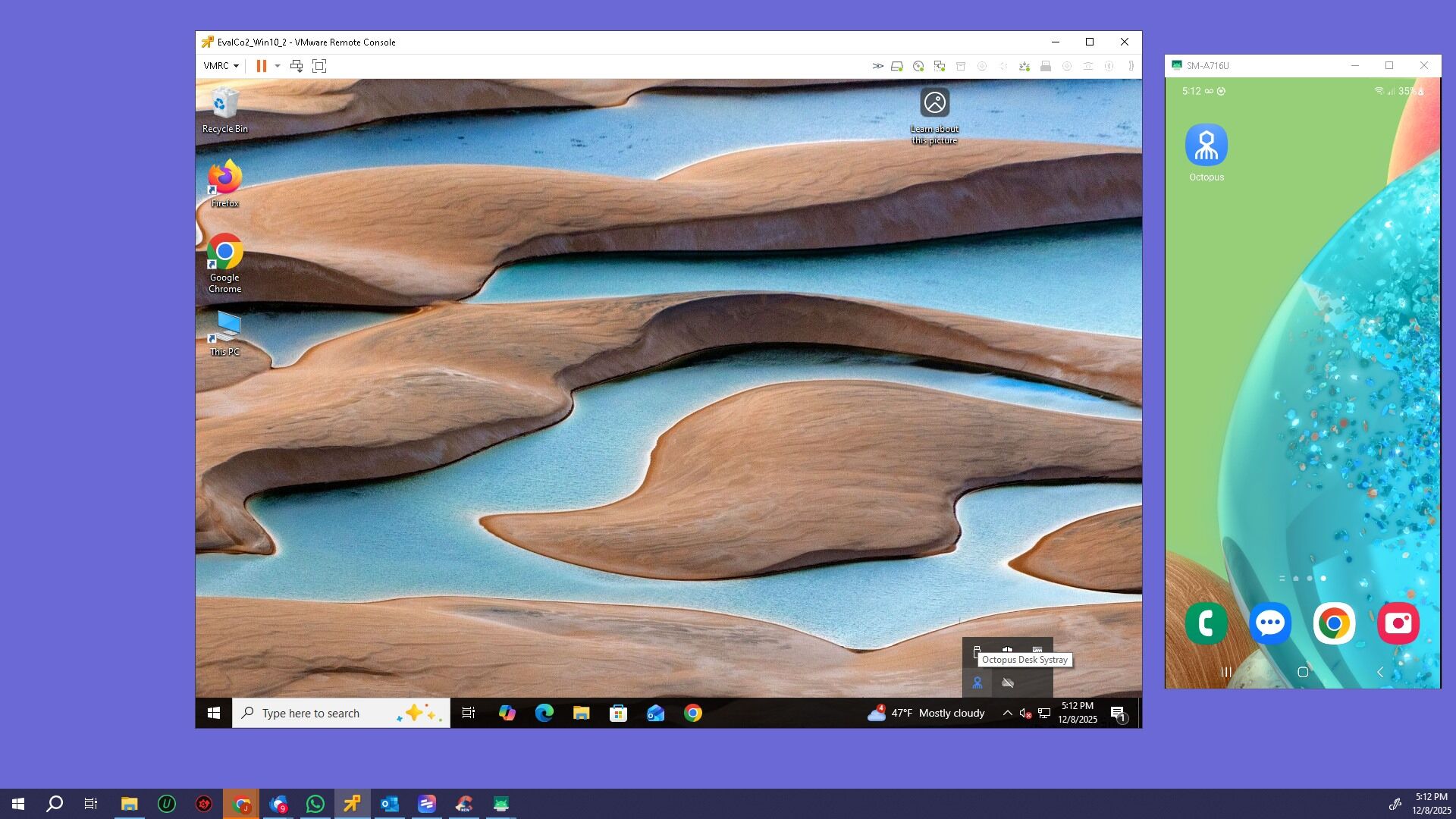
Step 3 – Right-click the SDO Icon
Right click on the Secret Double Octopus logo.
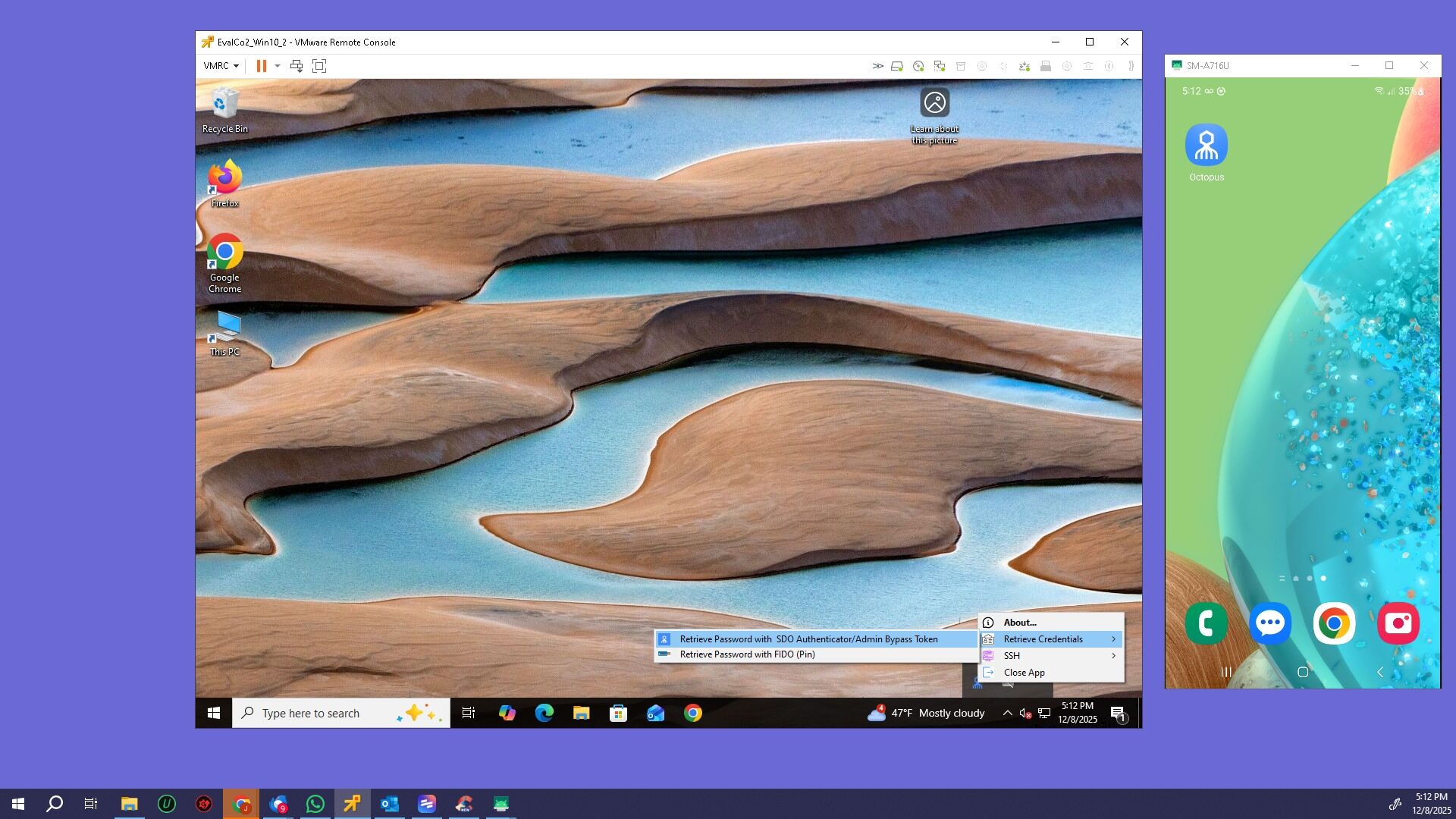
Step 4 – Start Credential Retrieval
Click Retrieve Credentials, then select Retrieve Credential with Octopus Authenticator…
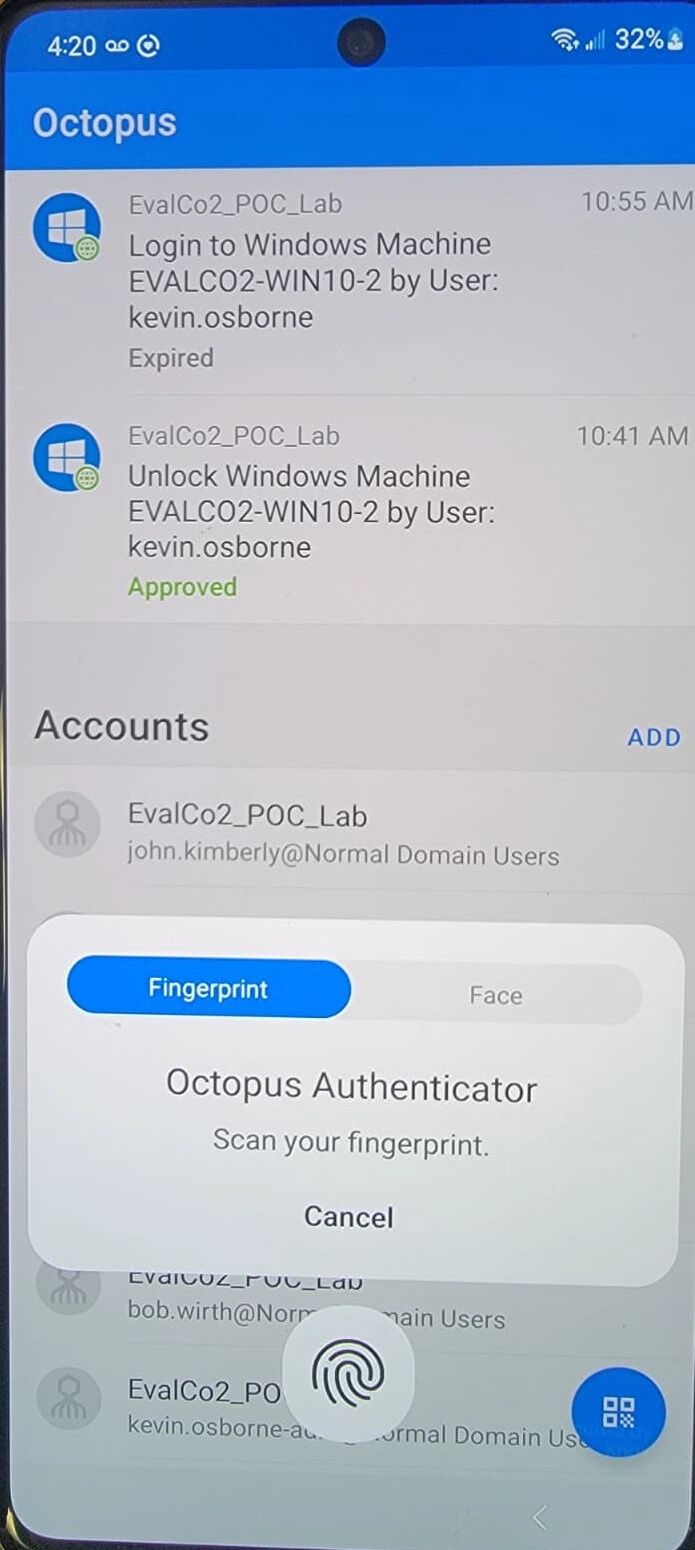
Step 5 – Verify on Your Phone
You will get a push to your phone. Verify your identity using fingerprint or facial recognition.
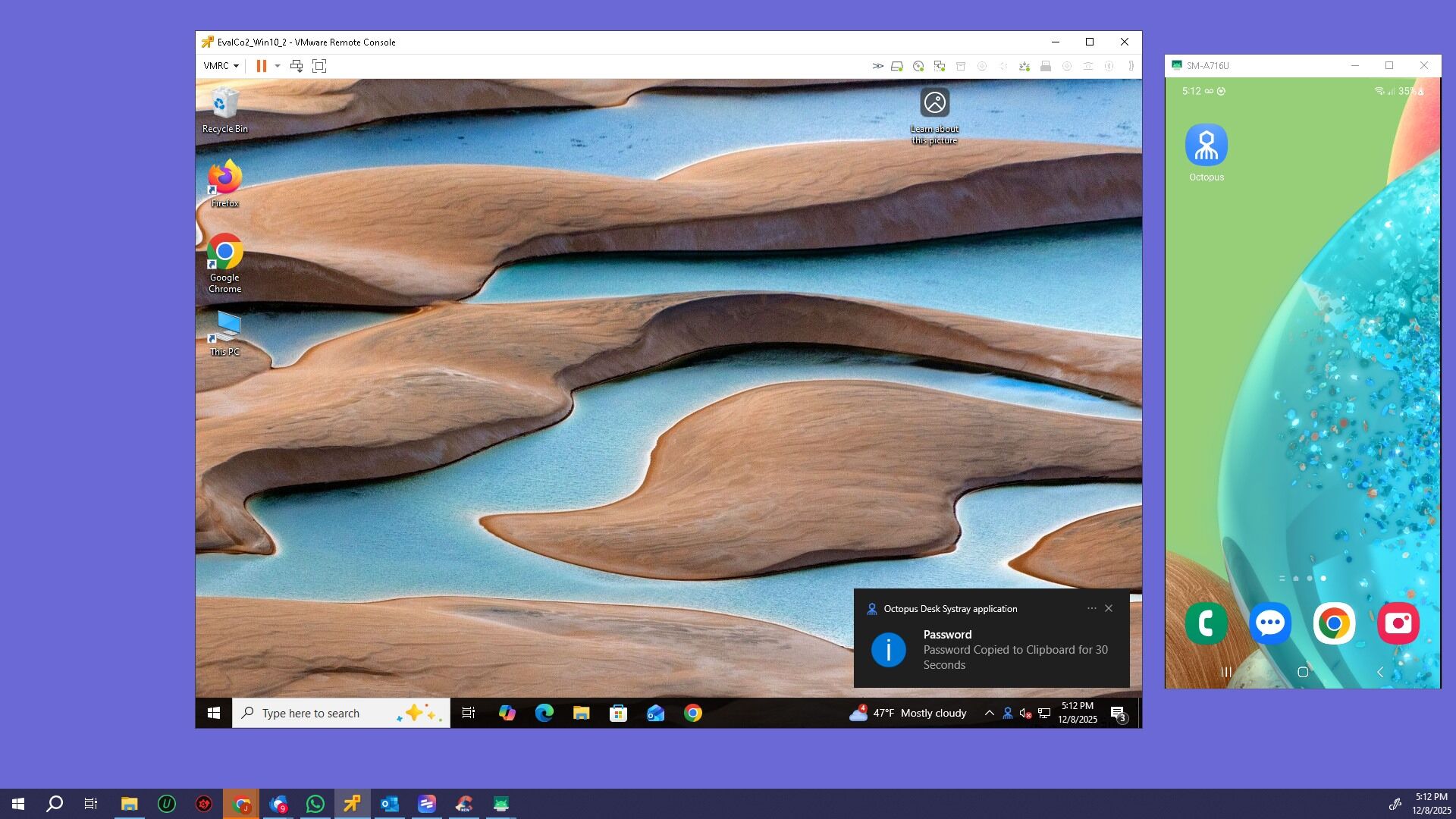
Step 6 – Password Copied to Clipboard
The retrieved password will be stored in the computer’s clipboard for 30 seconds.
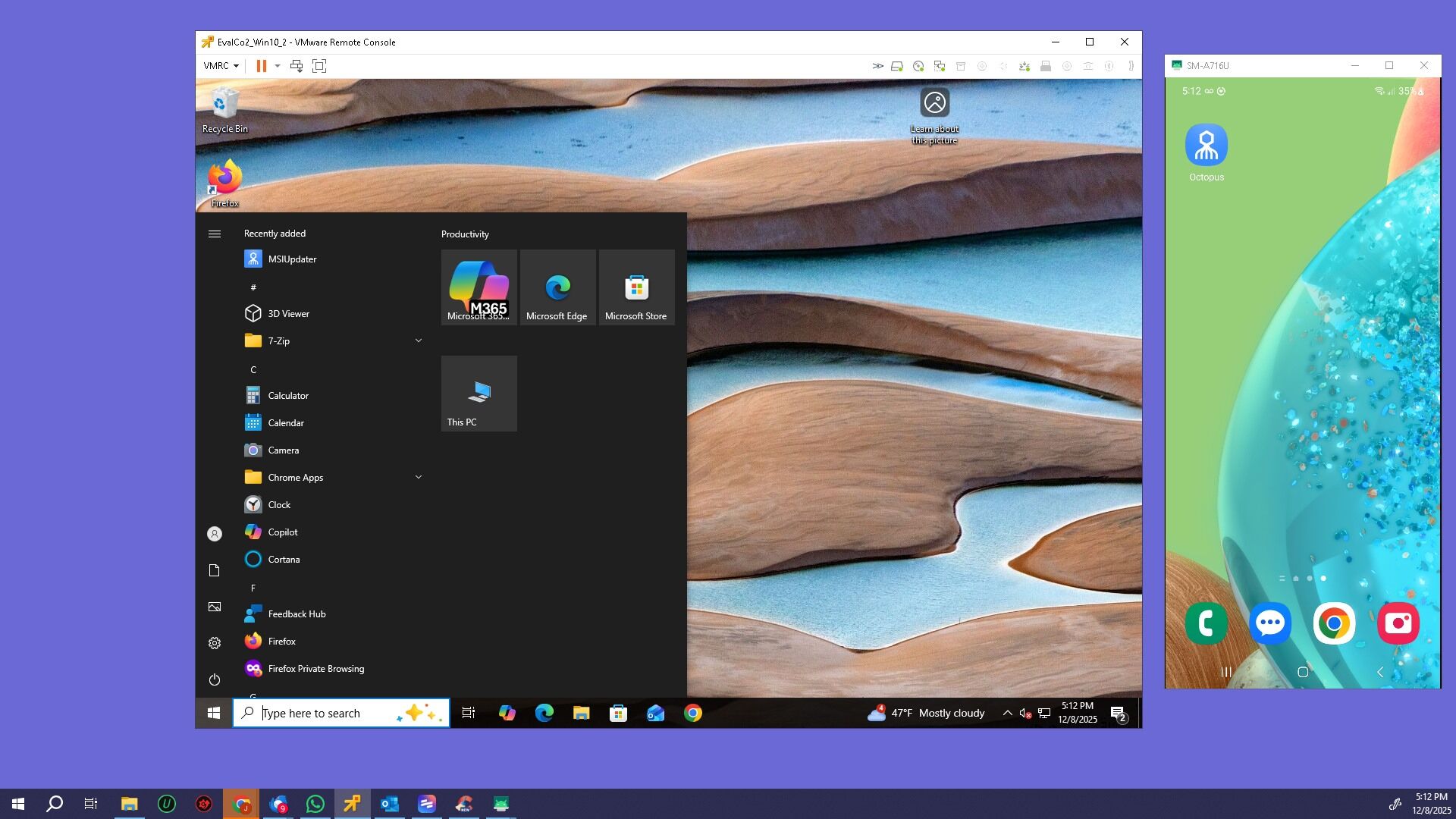
Step 7 – Open Notepad
To view the password, open Notepad.
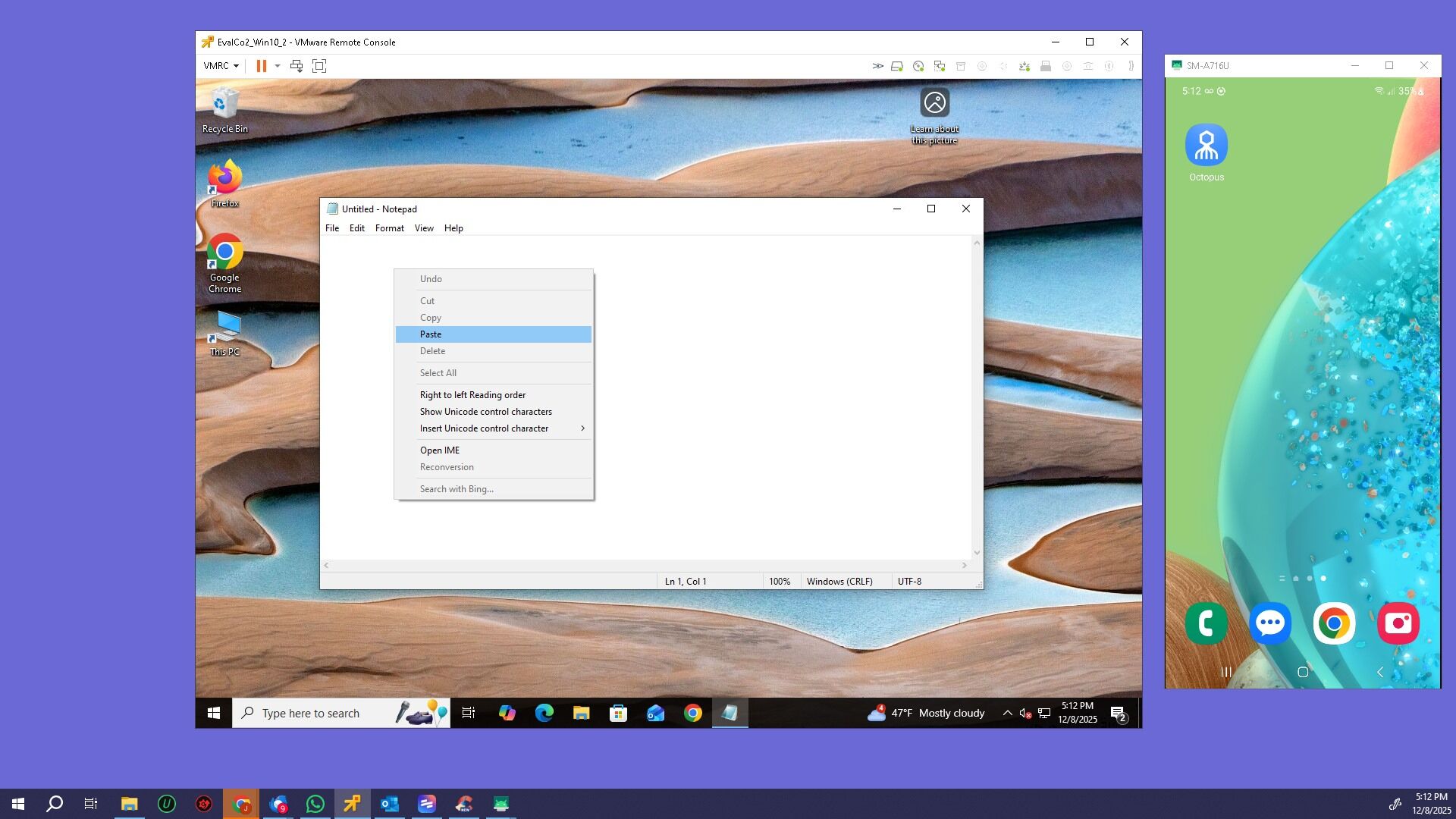
Step 8 – Paste the Password
Right click and Paste the password into Notepad.
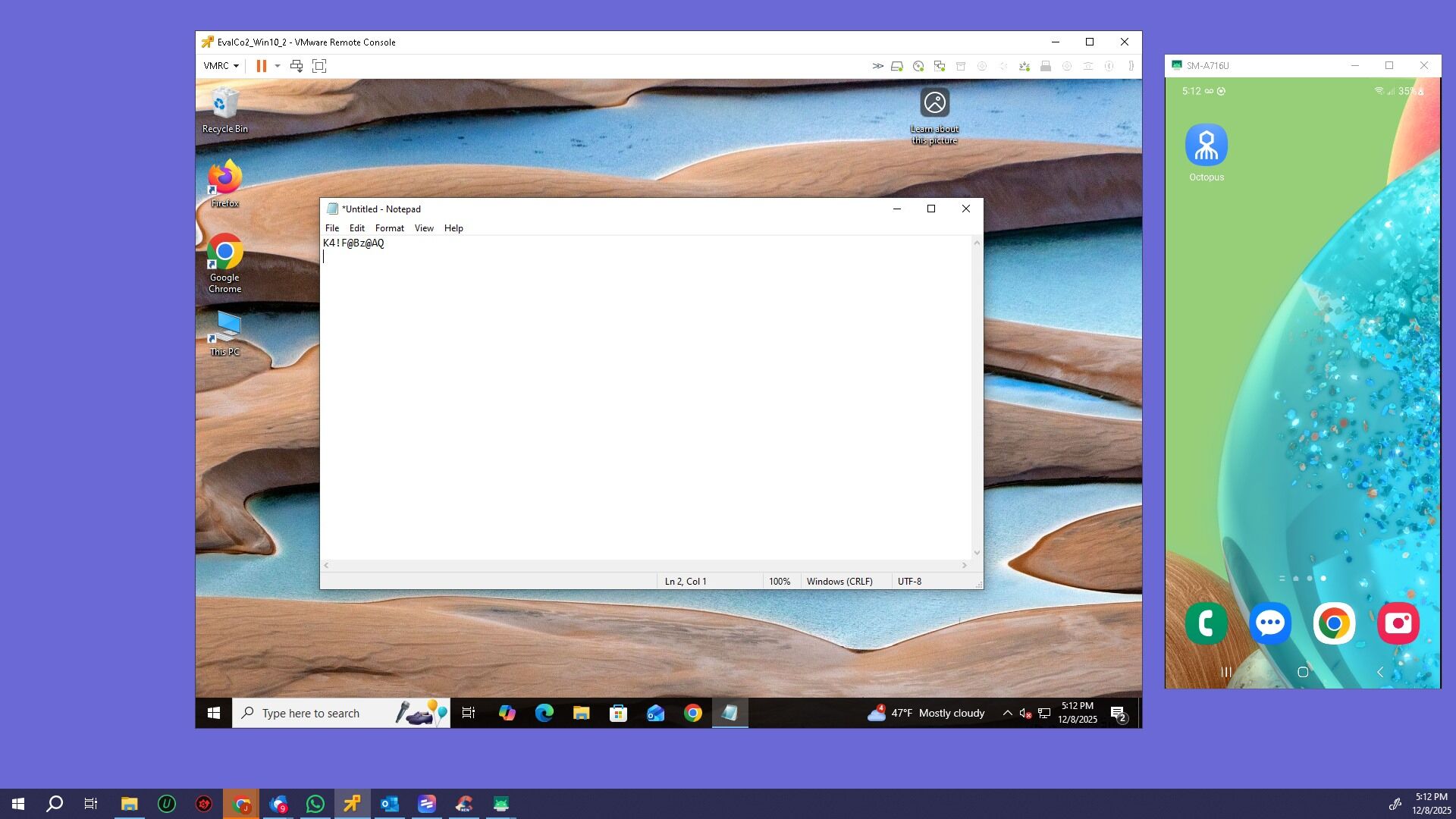
Step 9 – Password Displayed
The password is now shown.
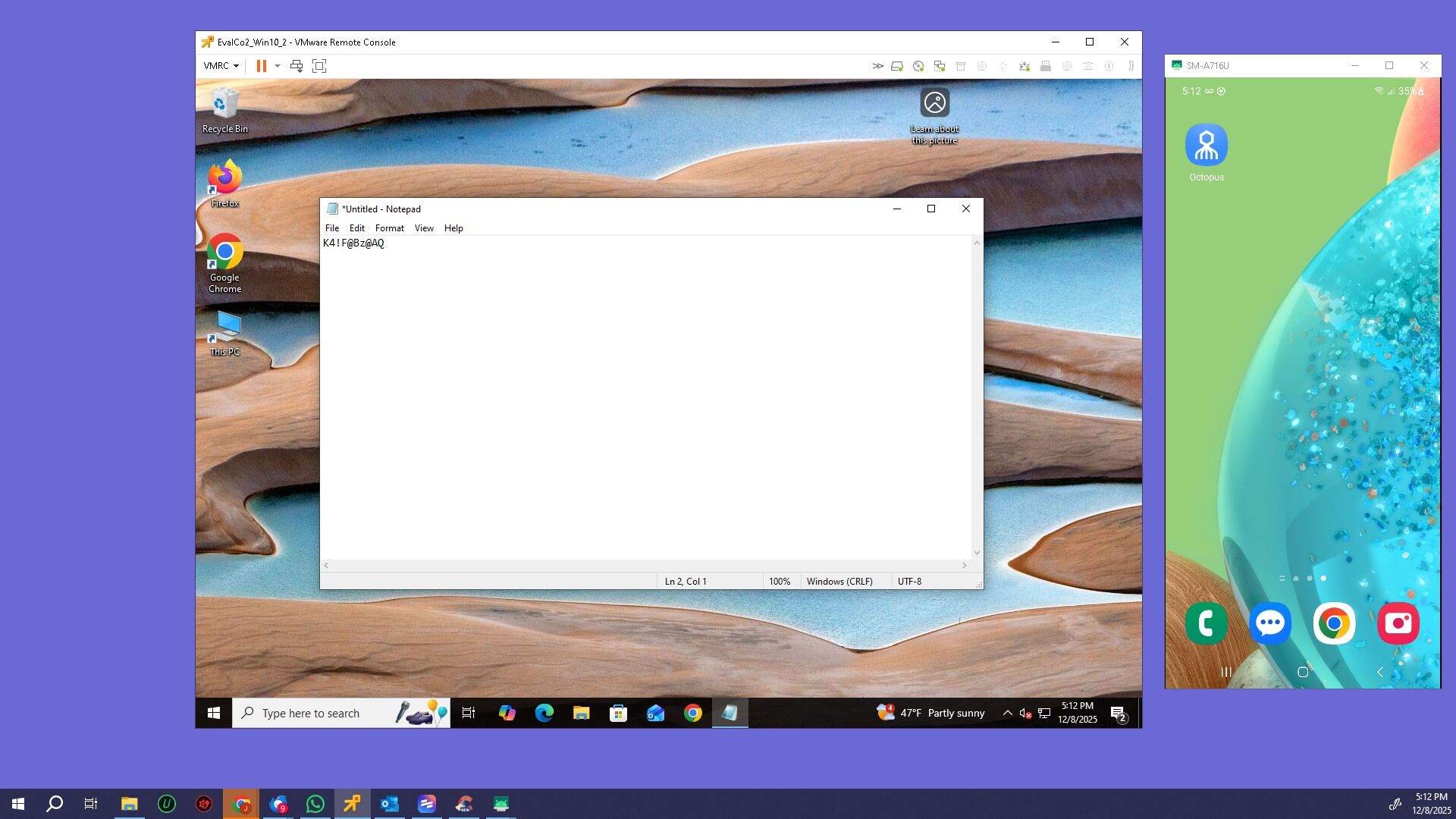
Step 10 – Open Octopus App (Optional Verification)
As an example verification, open the Octopus App on your phone.
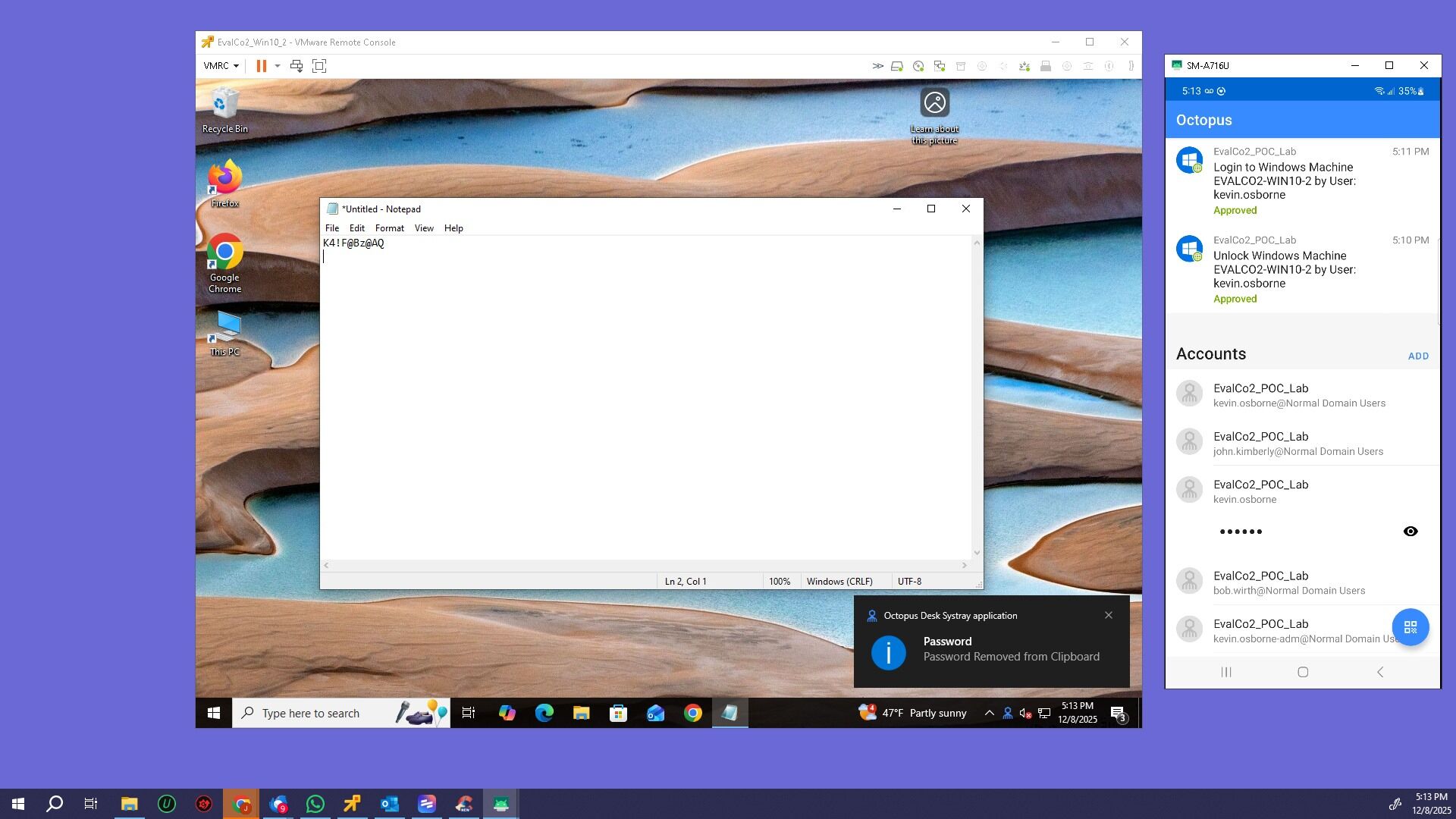
Step 11 – Clipboard Auto-Clear Notice
After 30 seconds, you will receive a notification that the password was removed from the clipboard.
Step 12 – Select the User
Click the user for which you are retrieving the password.
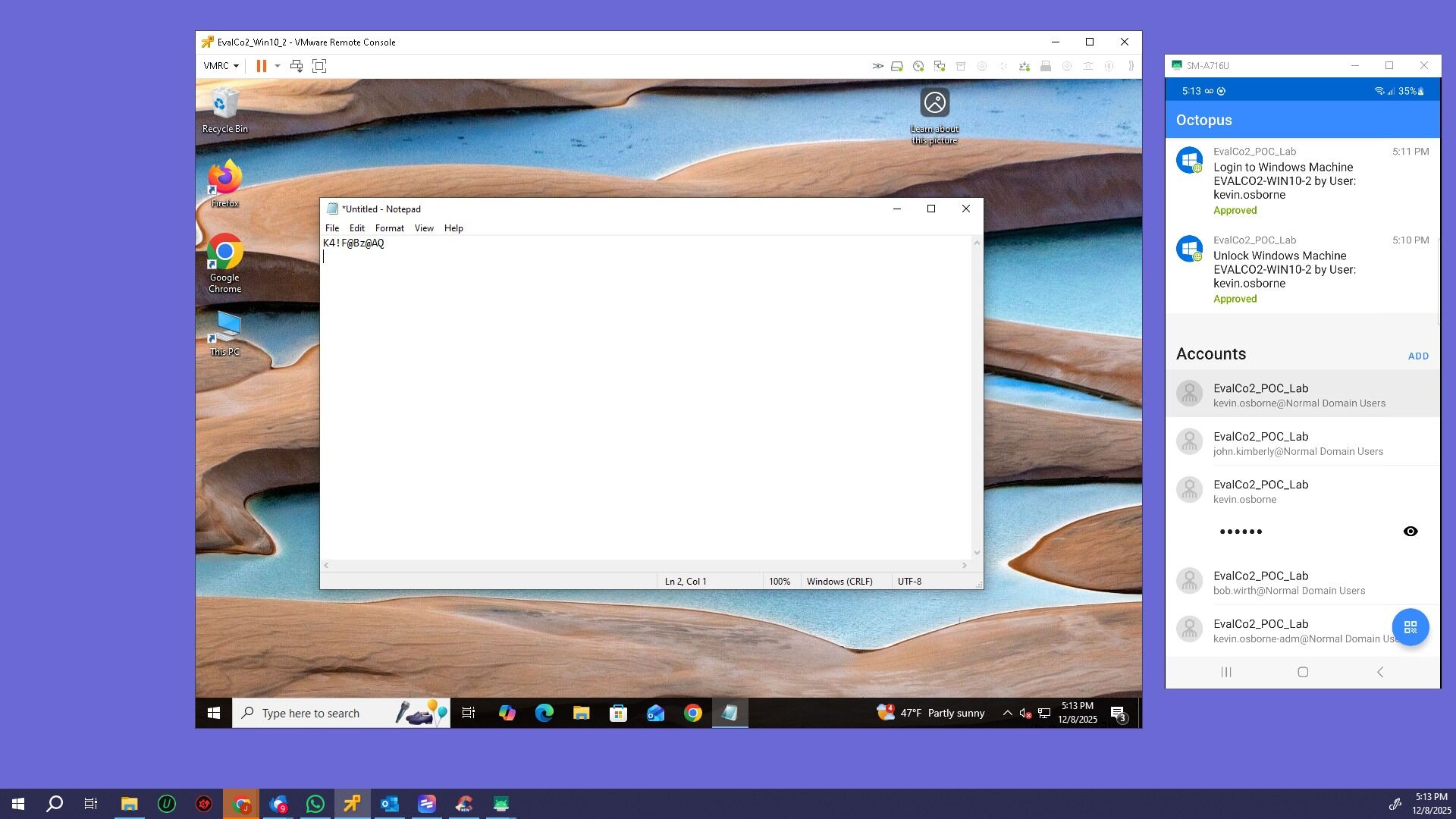
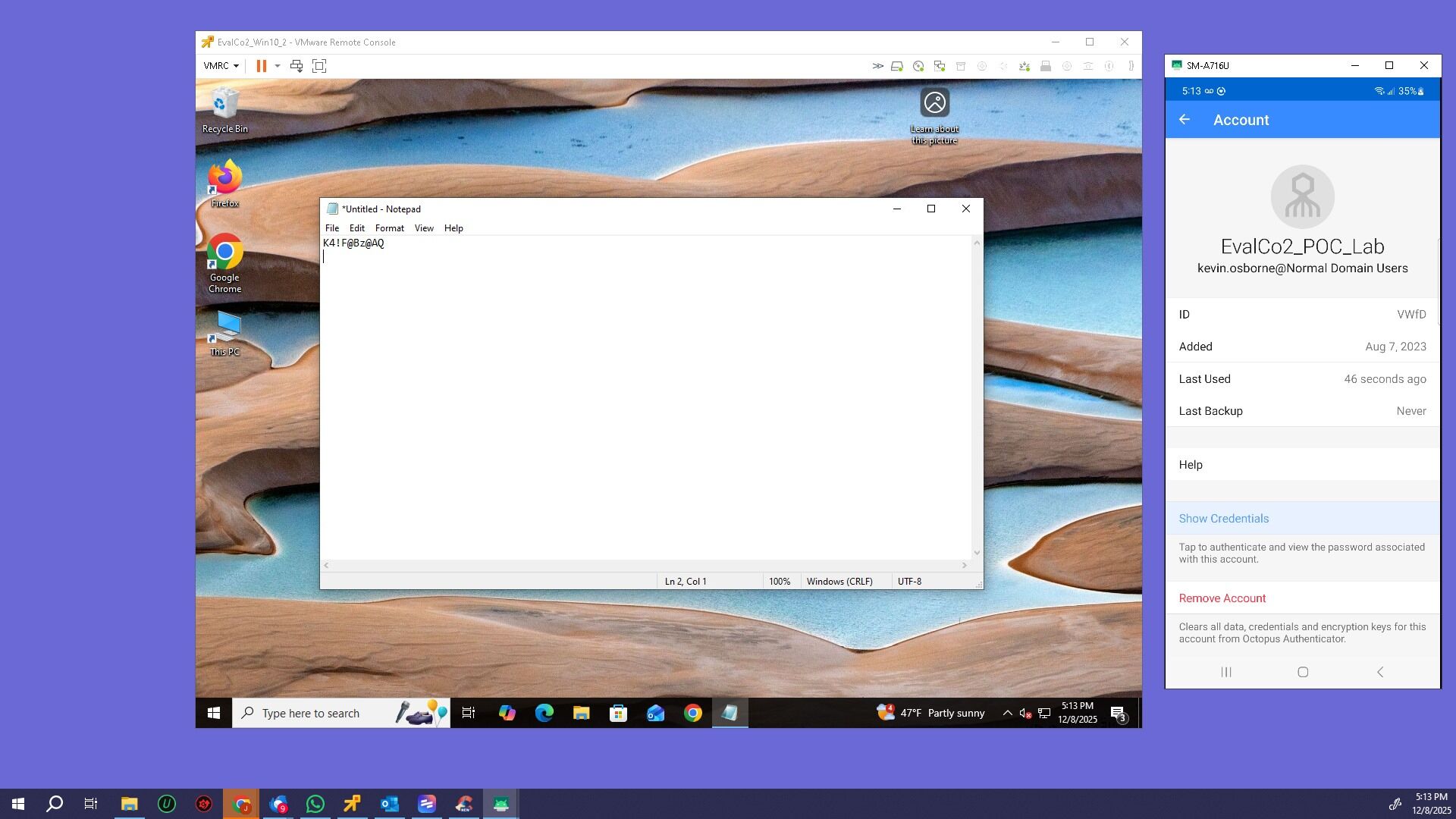
Step 13 – Show Credentials
In the user’s account, click Show Credentials.
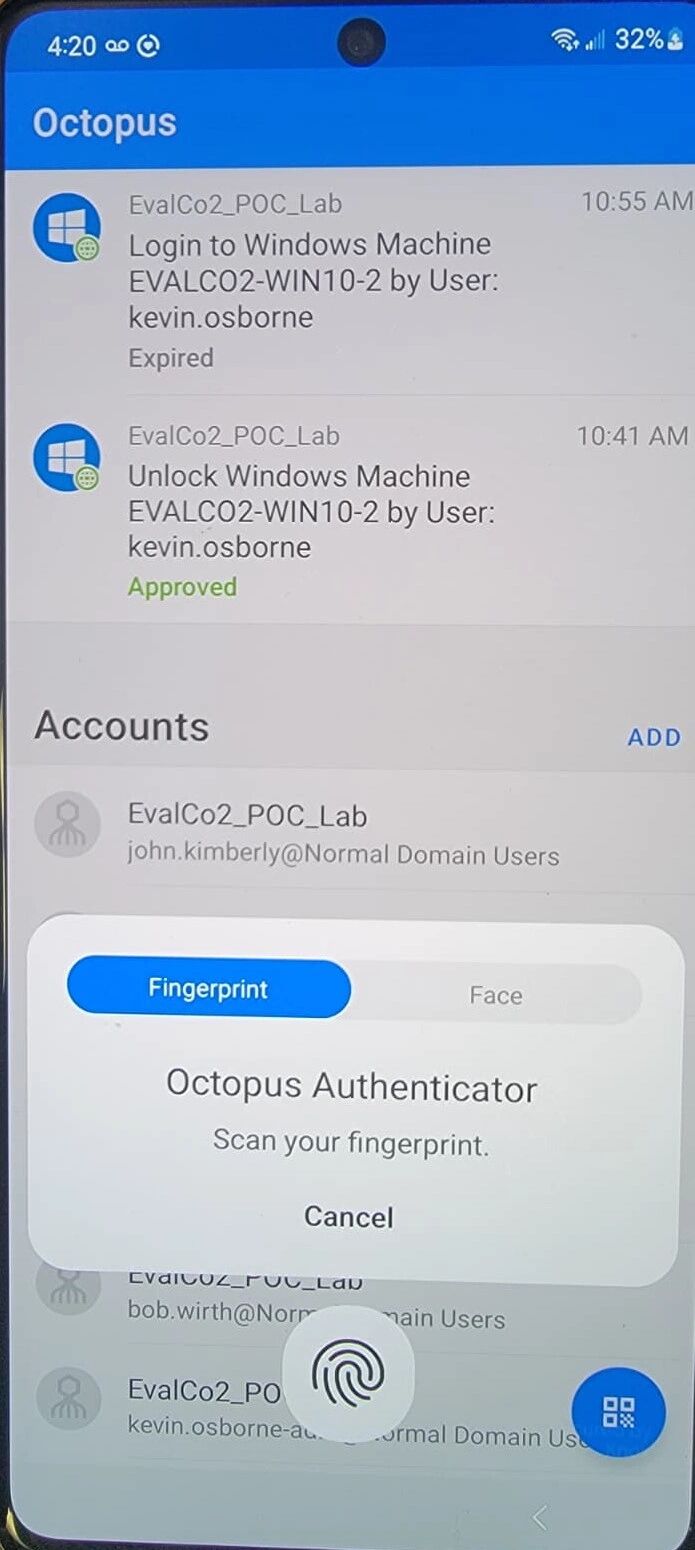
Step 14 – Verify Again on Mobile
You will get a verification message. Verify with fingerprint or facial recognition.
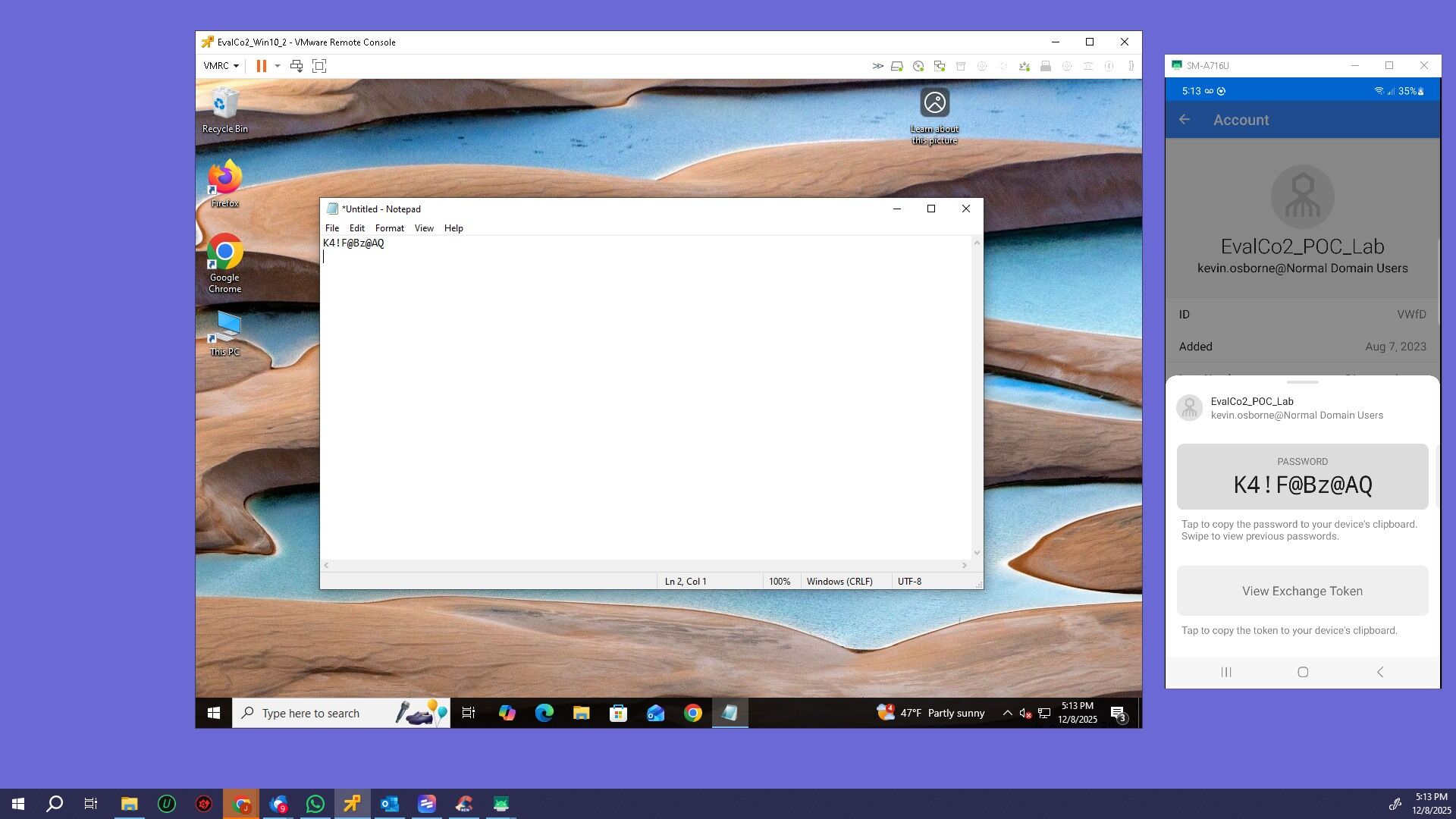
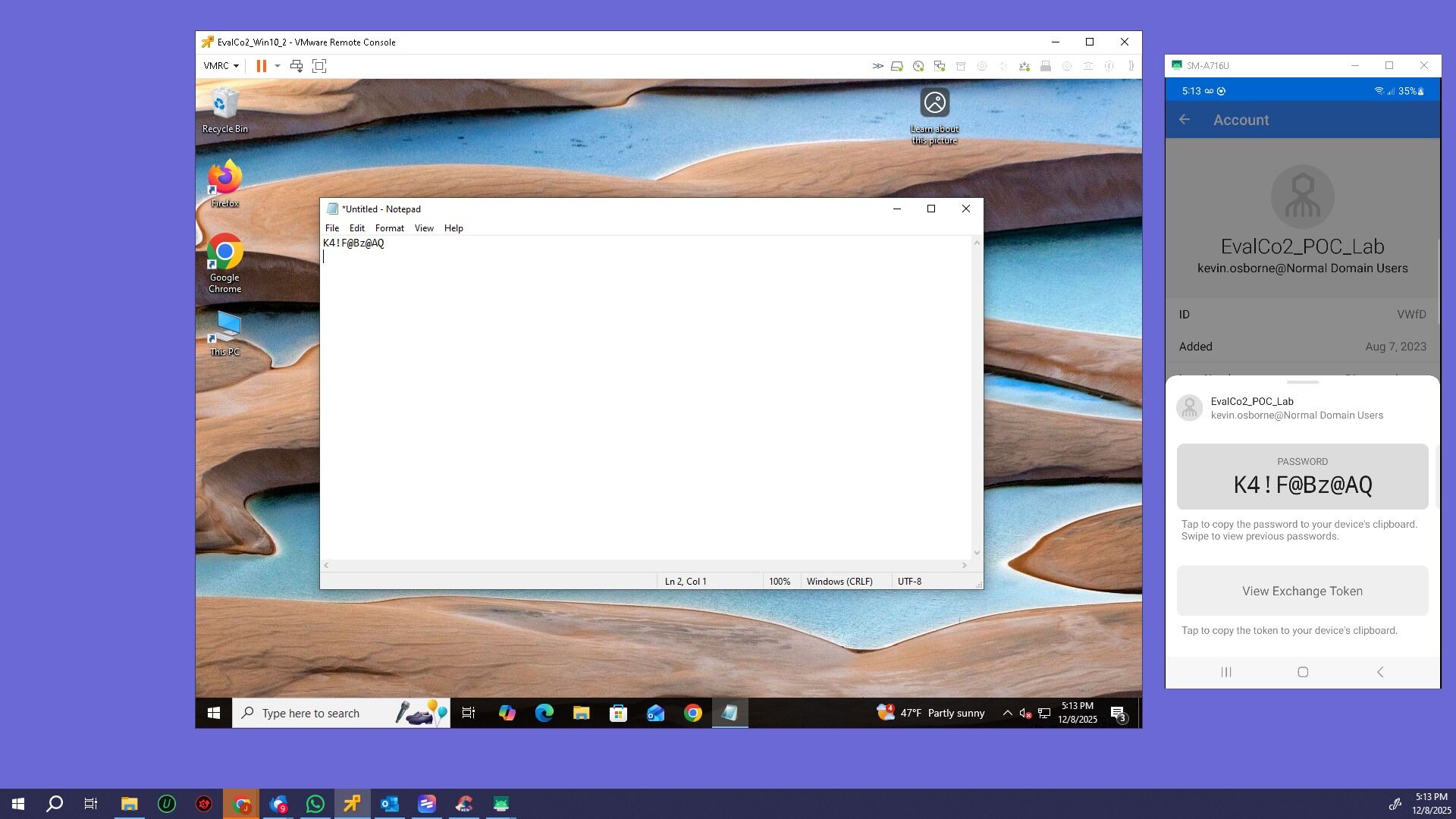
Step 15 – Compare Passwords
Compare the two passwords shown.
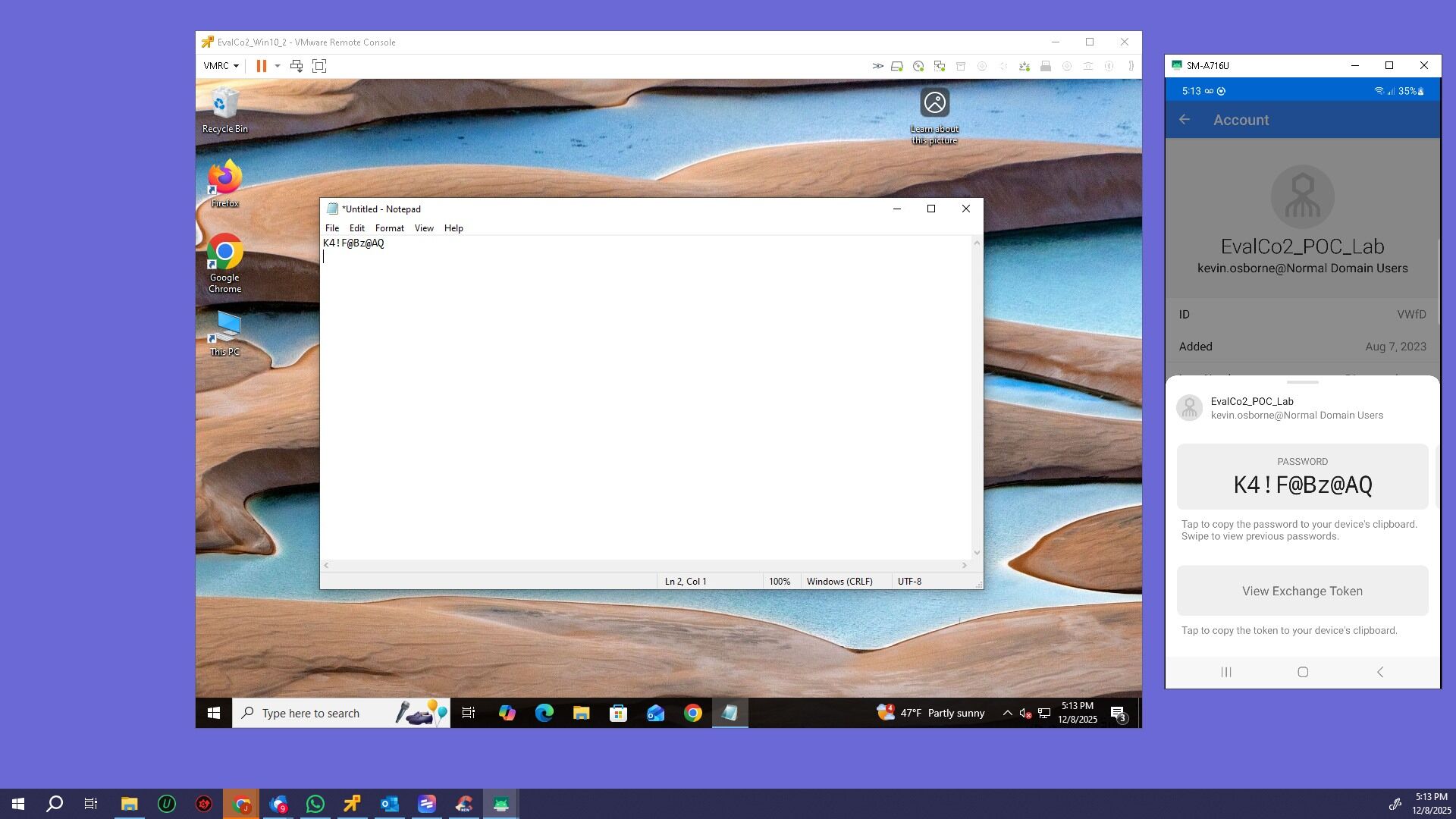
Step 16 – Confirm Match
Confirm the password in Notepad matches the password shown in the Octopus App.
Step 17 – Policy Note
The ability to view credentials in the Octopus App or store them in the clipboard is controlled by SDO policies, and can be enabled or disabled based on your organization’s requirements.