Unlock macOS using a FIDO2 Security Key
Use your FIDO2 security key (for example, a YubiKey) to unlock a locked macOS session with Secret Double Octopus.
Prerequisites
- Your user is enrolled with a FIDO2 security key (e.g., YubiKey).
- Your Mac is configured for SDO macOS authentication/unlock.
- The security key is available (USB-A/USB-C/NFC adapter as required).
- You know the FIDO2 PIN (if your policy requires it).
1
macOS session is locked
Your Mac is on the lock screen (locked manually or by policy).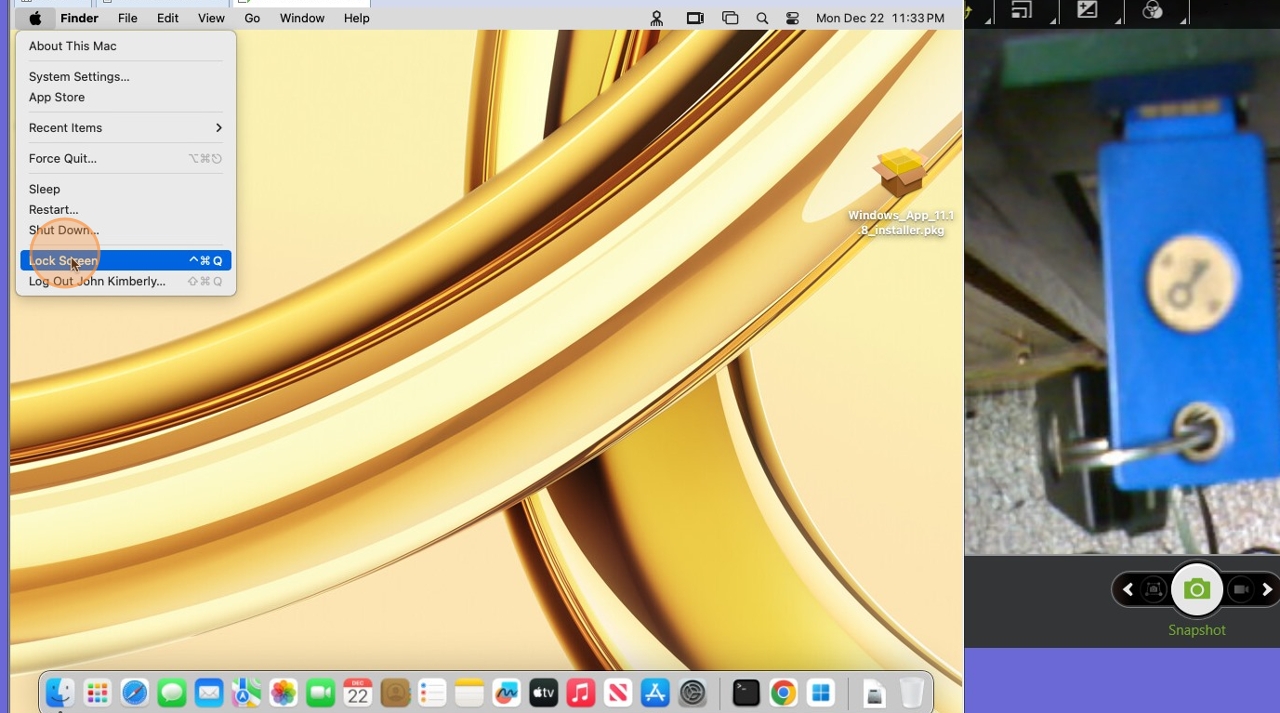
2
Select your account (if prompted)
If multiple users appear, select the account you want to unlock.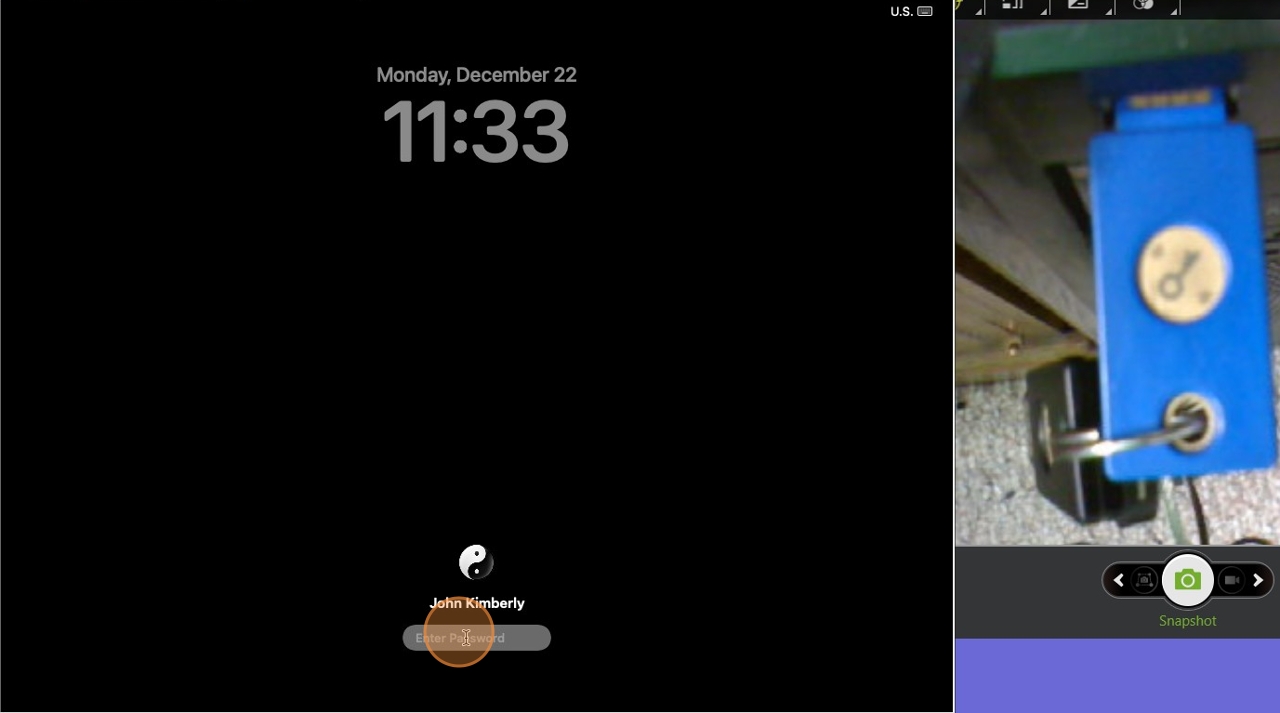
3
Connect your FIDO2 security key
Insert the key into the Mac (or connect via adapter if needed).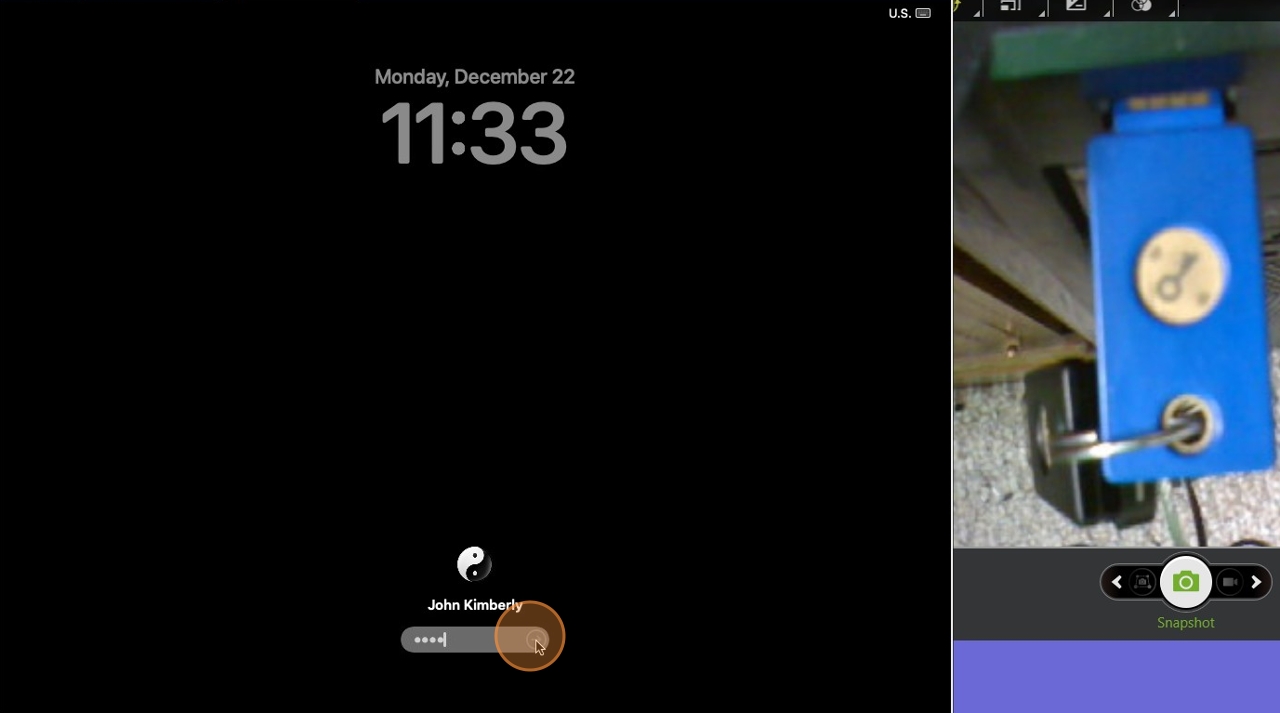
4
Enter the FIDO2 PIN (if required)
If prompted, type your FIDO2 PIN and press Enter.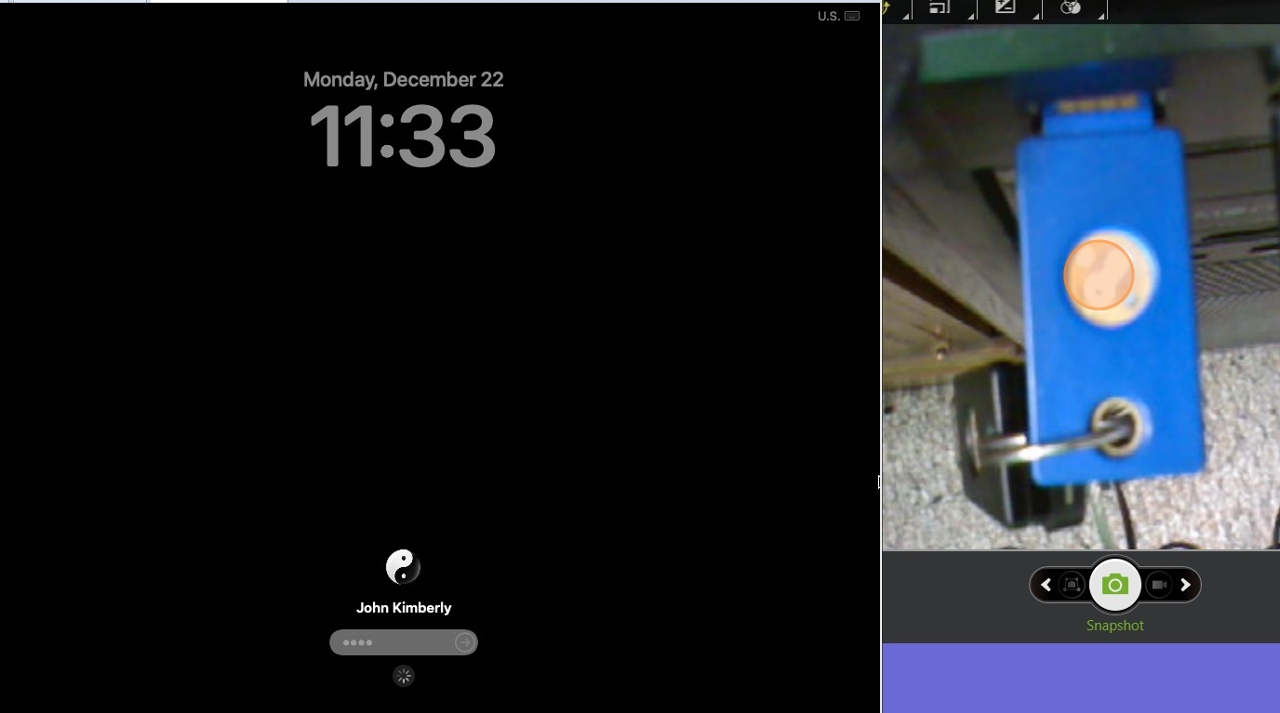
5
Touch the security key
When the key flashes, touch the sensor/button to approve the unlock.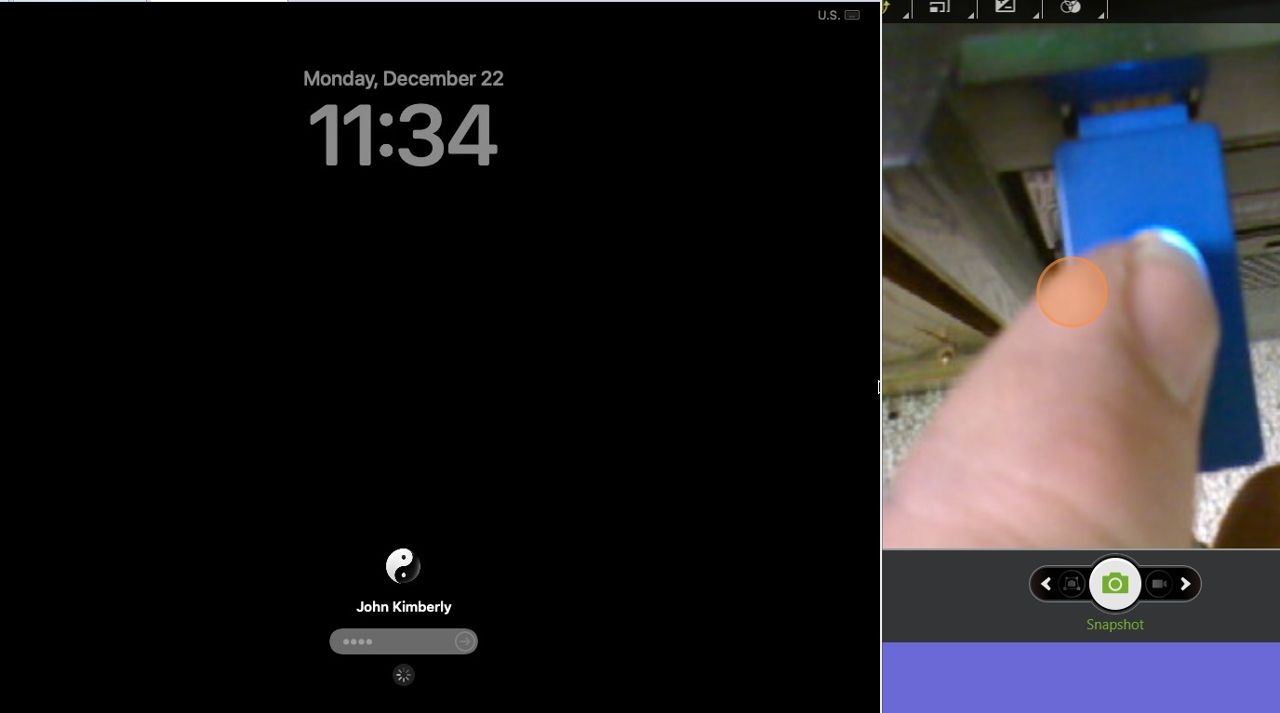
6
macOS unlocks
After successful verification, your Mac unlocks and you’re signed in.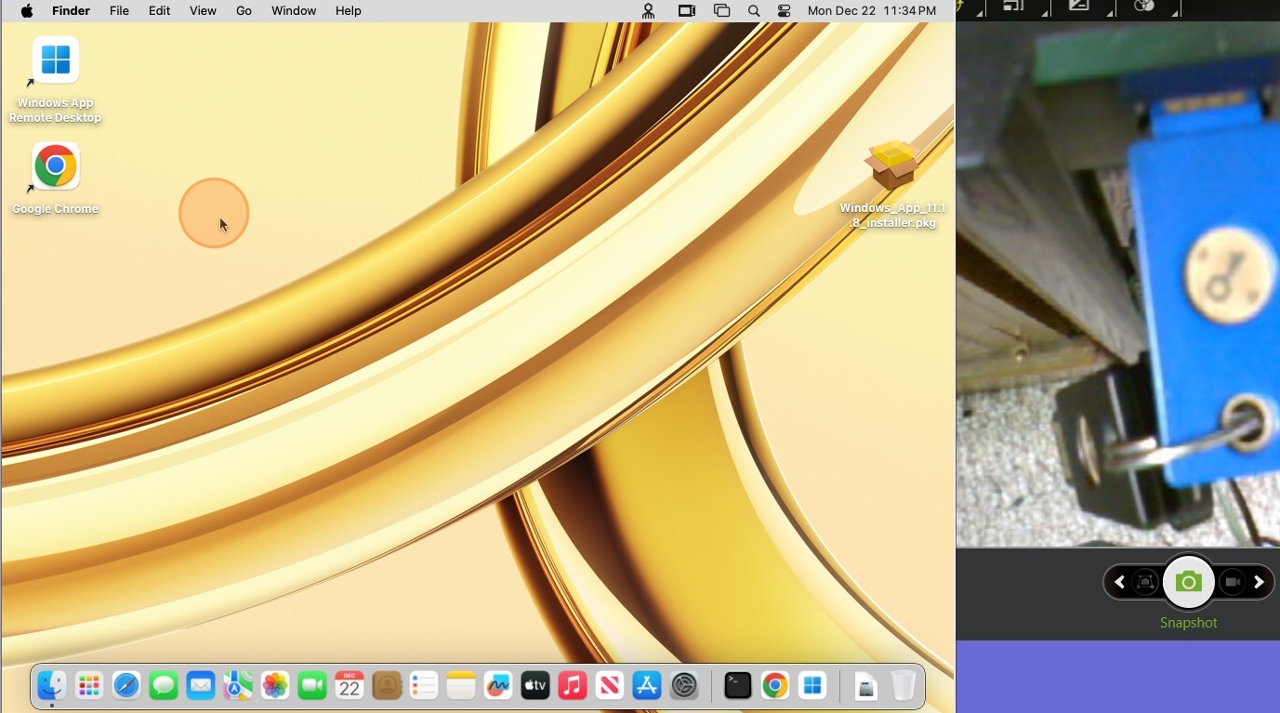
Troubleshooting
- The key is not detected: Reinsert the key or try a different port/adapter.
- PIN failed: Make sure you’re using the PIN assigned to the key (not your account password).
- Nothing happens when touching the key: Wait for the key to flash, then touch again.
© Secret Double Octopus · End User Guide · Version 1.0